

Choose your method
Select the method that matches how you receive verification codes:| Scenario | Recommended Method |
|---|---|
| You have the TOTP secret key | Store TOTP secret — Skyvern generates codes |
| Codes sent to email/SMS you can forward | Push codes to Skyvern |
| Codes sent to a system you control | Skyvern pulls from your endpoint |
| Passwordless/magic link auth | Magic links |
| Using Bitwarden with TOTP | Password manager integration |
Method 1: Store TOTP secret
Best for: Sites where you have access to the TOTP secret (the setup QR code or manual key). When you enable 2FA on a website, you’re typically shown a QR code or a secret key. Store this secret with your credential, and Skyvern generates valid codes automatically.TOTP types
| Type | Description |
|---|---|
authenticator | Standard TOTP codes (Google Authenticator, Authy, etc.) |
email | Codes sent via email that you’ll push to Skyvern |
text | Codes sent via SMS that you’ll push to Skyvern |
Finding your TOTP secret
Most sites show the secret when you set up 2FA:- Go to your account’s security settings
- Click “Set up authenticator app”
- Look for “Can’t scan the QR code?” or “Manual entry”
- Copy the secret key (usually Base32 format like
JBSWY3DPEHPK3PXP)
If you’ve already set up 2FA and don’t have the secret, you may need to disable and re-enable 2FA to see the secret again. Contact support@skyvern.com for help.
Method 2: Push codes to Skyvern
Best for: Codes sent to email or SMS that you can programmatically forward. When your automation encounters a 2FA prompt, Skyvern polls for codes that you push via API. Your email or SMS forwarding system sends codes to Skyvern as they arrive.Step 1: Set up code forwarding
Configure your email or SMS to forward verification codes to Skyvern. Common approaches:- Email: Gmail filter + Zapier webhook
- SMS: Twilio webhook to your server
- Email: AWS SES + Lambda function
How to set up Email Forwarding with Zapier?
How to set up Email Forwarding with Zapier?
This setup requires a Zapier Pro plan account.
Create a Zapier Zap
- Go to zapier.com and create a new Zap
- In the newly created Zap draft, click the “Trigger” button
- Click Email by Zapier
- In the Email “Setup”, pick New Inbound Email in the Trigger event selection. Click Continue
- In Email “Configure”, create an email address which will be used to forward emails for TOTP codes. Click Continue
- Click the “Action” button and add Webhooks by Zapier
- In the Setup, choose POST under the Action event selection. Click Continue
- In the “Configure”, set up these fields to make a POST request to Skyvern’s TOTP API:
- URL:
https://api.skyvern.com/v1/credentials/totp - Payload Type:
json - Data:
totp_identifier: choose Raw To Email after clicking the ”+” signcontent: choose Body Plain after clicking the ”+” signsource:email
- Headers:
x-api-key: your Skyvern API key
- URL:
- Click Continue
Add forwarding email and create a filter in Gmail
Go to Gmail Settings → Forwarding and POP/IMAP → click Add a forwarding address → enter the Zapier email address you created. Complete any verification steps.Then go to Filters and Blocked Addresses. Click Create a new filter and set up a filtering rule for your TOTP (2FA/MFA) emails. Click Create filter, check Forward it to, pick the Zapier email address, and update the filter.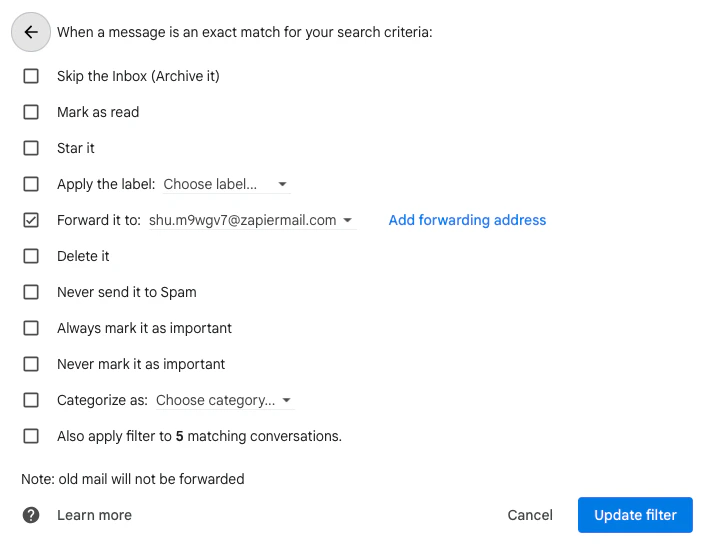
How to set up SMS Forwarding with Twilio?
How to set up SMS Forwarding with Twilio?
Use a virtual phone number service like Twilio or Plivo to receive SMS codes and forward them to Skyvern.
Set up a Twilio phone number
Create a Twilio account and provision a phone number. This number will receive the SMS verification codes.
Create a Twilio Function to forward codes
In your Twilio console, create a new Function that forwards incoming SMS to Skyvern’s TOTP API:Add your
SKYVERN_API_KEY as an environment variable in the Twilio Function configuration.Configure the webhook
In your Twilio phone number settings, set the A Message Comes In webhook to point to your Twilio Function URL.
Step 2: Start the run with a TOTP identifier
When running your login, include atotp_identifier that matches what you’ll use when pushing codes:
Step 3: Push the code when received
When the verification code arrives, push it to Skyvern:If
content is longer than 10 characters, Skyvern’s AI extracts the verification code automatically. You can send the full email or SMS body without parsing it yourself.Method 3: Skyvern pulls from your endpoint
Best for: Environments where you control the system receiving 2FA codes and can expose them via an HTTP endpoint. Instead of pushing codes to Skyvern, you implement an endpoint that Skyvern polls until a code is available.Step 1: Implement the endpoint
Your endpoint must accept POST requests and return the verification code: Request from Skyvern:Step 2: Verify request signatures
Skyvern signs all requests using HMAC-SHA256 with your API key. Verify the signature to ensure requests are authentic:Step 3: Configure the login
Passtotp_url when running your login:
Method 4: Magic links
Best for: Passwordless authentication systems that send one-time login links. When a site uses magic links instead of passwords, push the link to Skyvern:Skyvern automatically detects URLs and classifies them as magic links. The automation will navigate to the link to complete authentication.
- Trigger the magic link — Navigate to login and enter email
- Complete login — Use the magic link as the starting URL for the next step
Password manager TOTP
If you store TOTP secrets in Bitwarden or 1Password, Skyvern can retrieve both the password and TOTP code in a single request.Bitwarden
Store your TOTP secret in Bitwarden’s authenticator field:- Open the vault item in Bitwarden
- Click “Authenticator Key (TOTP)”
- Enter your TOTP secret or scan the QR code
- Skyvern retrieves both password and TOTP when using this credential
- Raw secret:
JBSWY3DPEHPK3PXP - otpauth URI:
otpauth://totp/Example:user@example.com?secret=JBSWY3DPEHPK3PXP&issuer=Example
1Password
Store TOTP in 1Password’s one-time password field:- Edit the login item in 1Password
- Add a “One-Time Password” field
- Enter the TOTP secret or scan the QR code
- Reference the item in your Skyvern workflow
Multi-field TOTP entry
Some sites split TOTP codes across multiple input fields (one digit per box). Skyvern handles this automatically:- Detects multi-field TOTP layouts
- Enters the same code across all fields
- Caches the code to prevent requesting a new one mid-entry
No special configuration needed. Skyvern’s AI recognizes multi-field TOTP inputs and handles them correctly.
Timeouts and polling
Skyvern waits for 2FA codes based on configurable timeouts:| Setting | Default | Description |
|---|---|---|
| Polling interval | 10 seconds | How often Skyvern checks for new codes |
| Polling timeout | 15 minutes | Maximum wait time before failing |
List recent codes
Debug your 2FA integration by listing recent codes received:| Parameter | Description |
|---|---|
totp_identifier | Filter by identifier (email, phone, etc.) |
workflow_run_id | Filter by specific workflow run |
otp_type | Filter by type: totp or magic_link |
limit | Number of records (default 50, max 200) |
Skyvern only returns codes from the last 10 minutes (configurable via
TOTP_LIFESPAN_MINUTES).Next steps
Store Credentials
Set up your credential vault integration
Troubleshooting
Debug 2FA and login failures