

- Run the same automation repeatedly with the same account (daily reports, scheduled data extraction)
- Want to skip login steps that consume credits and time
- Need multiple workflows to share the same authenticated state
Looking to manage profiles from code? See the API & SDK guide instead.
How profiles are created
Browser profiles are created automatically when you test a password credential with the Save browser session option enabled. There is no standalone “create profile” button — the profile is a byproduct of a successful login test.Creating a profile from a credential
Create or edit a password credential
Click + Add → Password to create a new credential, or click the pencil icon on an existing one. Enter the username and password. See Password Credentials for details.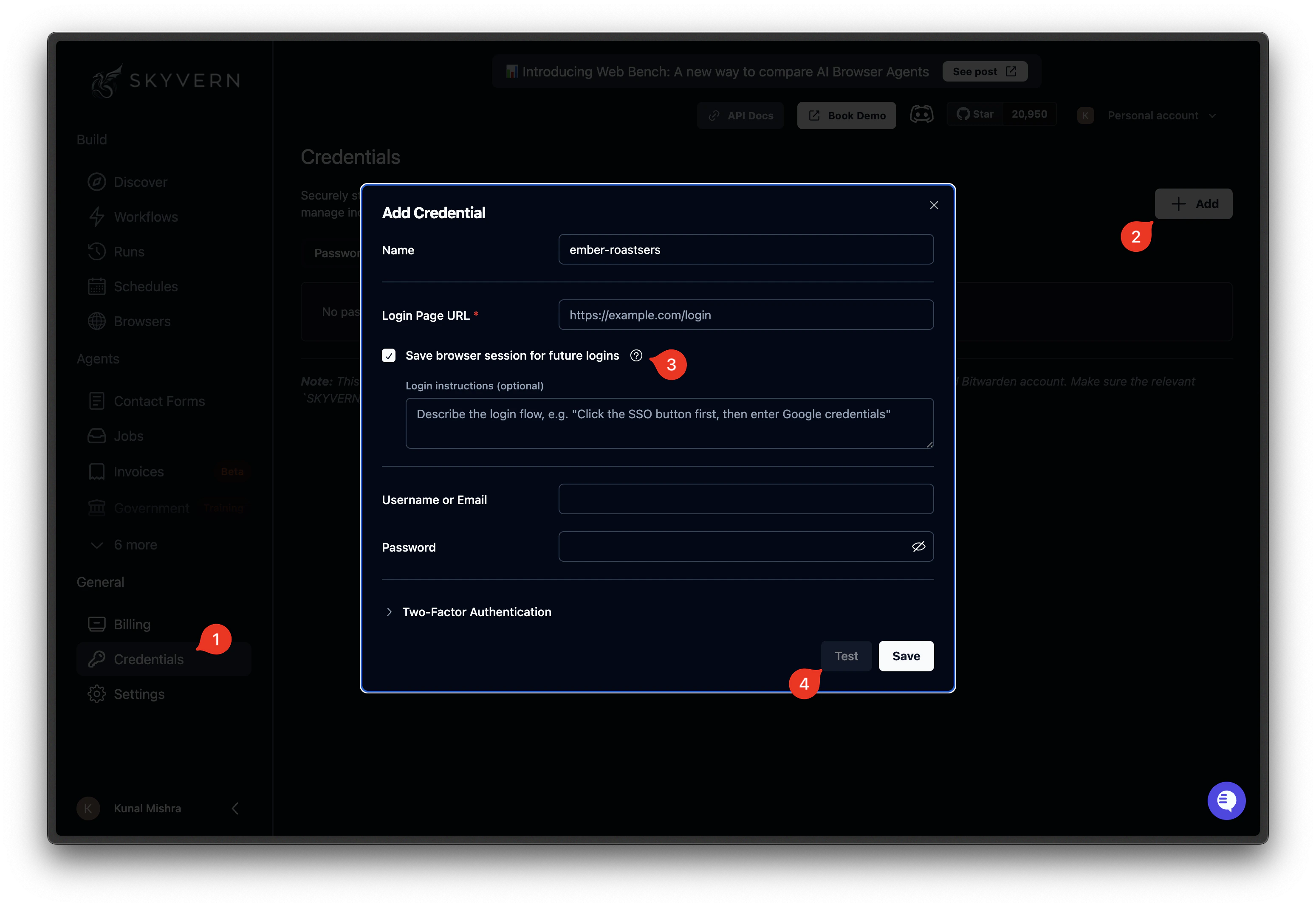
Enable Save browser session
Below the password fields, enable the Save browser session option. Enter the login URL for the site (e.g.,
https://app.example.com/login). You can also add optional context to help the AI navigate the login flow.Test the credential
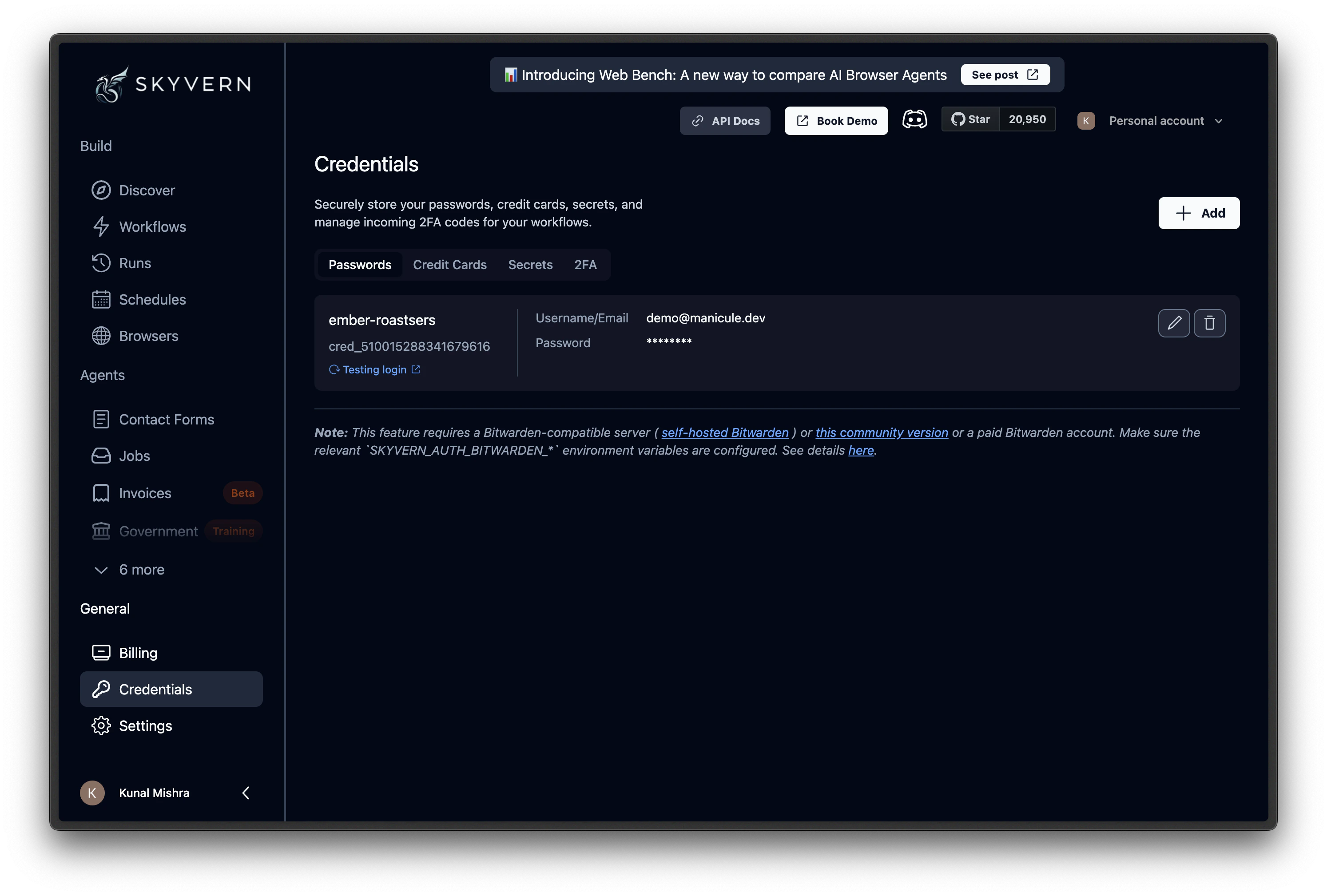
Click Test. Skyvern opens a browser, navigates to the login URL, signs in with the credential, and — if the login succeeds — saves the browser state as a profile. The profile is linked to this credential automatically.
When to refresh profiles
Cookies and session tokens expire. A profile that worked last week may not work today if the site’s authentication tokens have a short lifespan. Signs a profile needs refreshing:- Tasks that use the profile start failing with login-related errors
- The browser loads a login page instead of the authenticated dashboard
- The site forces re-authentication after a set period
Sessions vs profiles
| Browser Session | Browser Profile | |
|---|---|---|
| What it is | Live browser instance | Saved snapshot of browser state |
| Lifetime | Minutes to hours | Days to months |
| State | Current page, cookies, open connections | Cookies, localStorage, session files |
| Billing | Charged while open | No cost when not in use |
| Best for | Back-to-back tasks, human-in-the-loop | Repeated logins, scheduled workflows |
What’s next
Browser Sessions
Keep a browser open across multiple tasks
Password Credentials
Store the login details that profiles are built from
Browser Profiles (API)
Create and manage profiles programmatically