

- Workflow (required): The workflow to run. When creating from the workflow editor this is pre-selected.
- Cron Expression (required): A standard 5-field cron expression that defines how often the workflow runs (e.g.,
0 9 * * 1-5for every weekday at 9 AM). The UI validates the expression in real time and shows a human-readable translation. Quick presets are available for common patterns like hourly, daily, and weekly. - Timezone (required): The IANA timezone the cron expression is evaluated in (e.g.,
America/New_York). Defaults to your browser’s local timezone. The dropdown is searchable by city name. - Name: A human-readable label to identify this schedule in the table and run history.
- Description: Optional notes about what this schedule does or why it exists.
Creating a schedule
- From the Schedules page
- From the workflow editor
Open the Schedules page
Click Schedules (calendar icon) in the left sidebar.
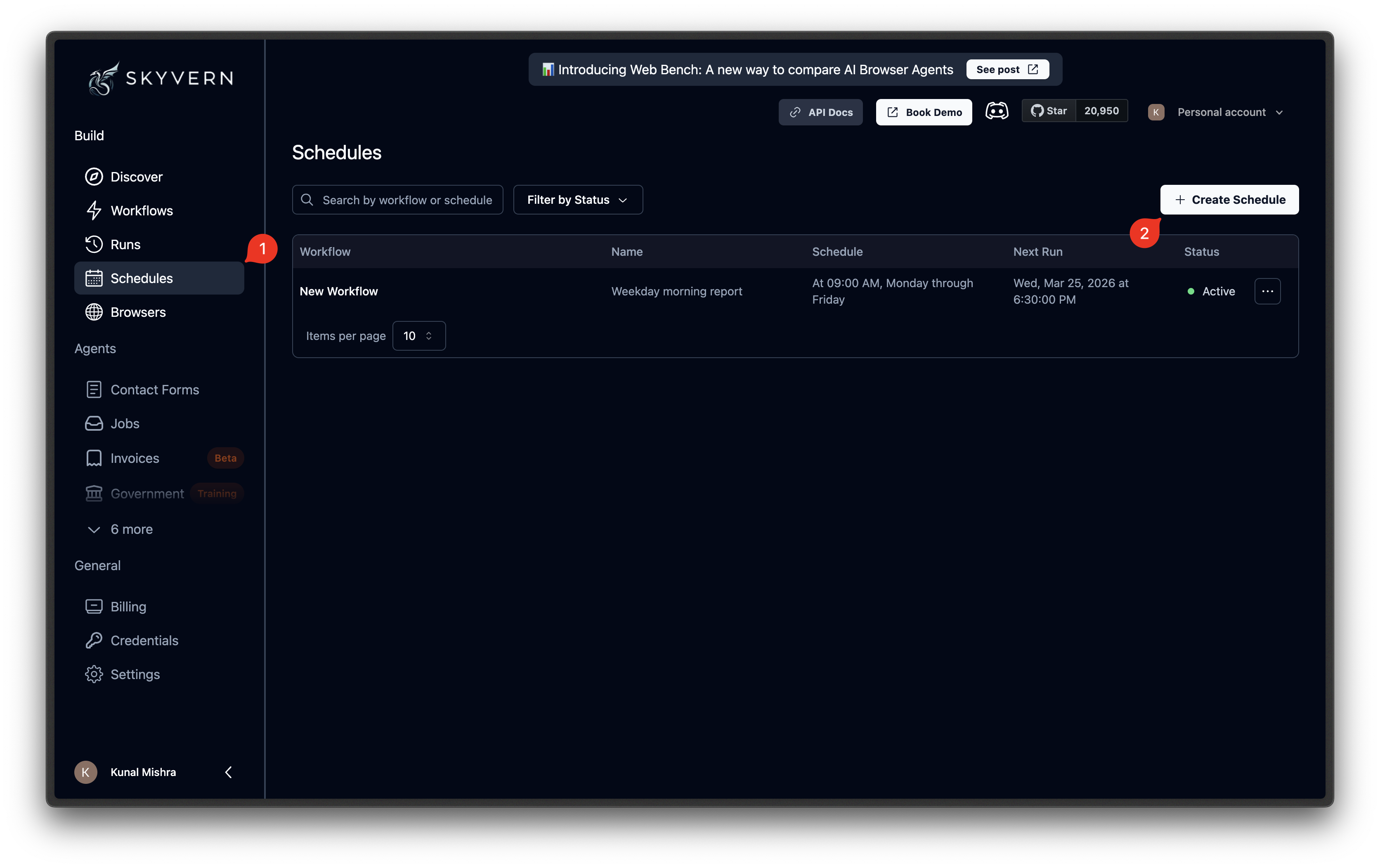
Select a workflow and configure the schedule
Choose the workflow you want to schedule from the dropdown. Only saved workflows appear in this list. Then fill in the cron expression, timezone, and optionally a name and description. Check the Next Scheduled Runs preview to verify the upcoming execution times match your expectations.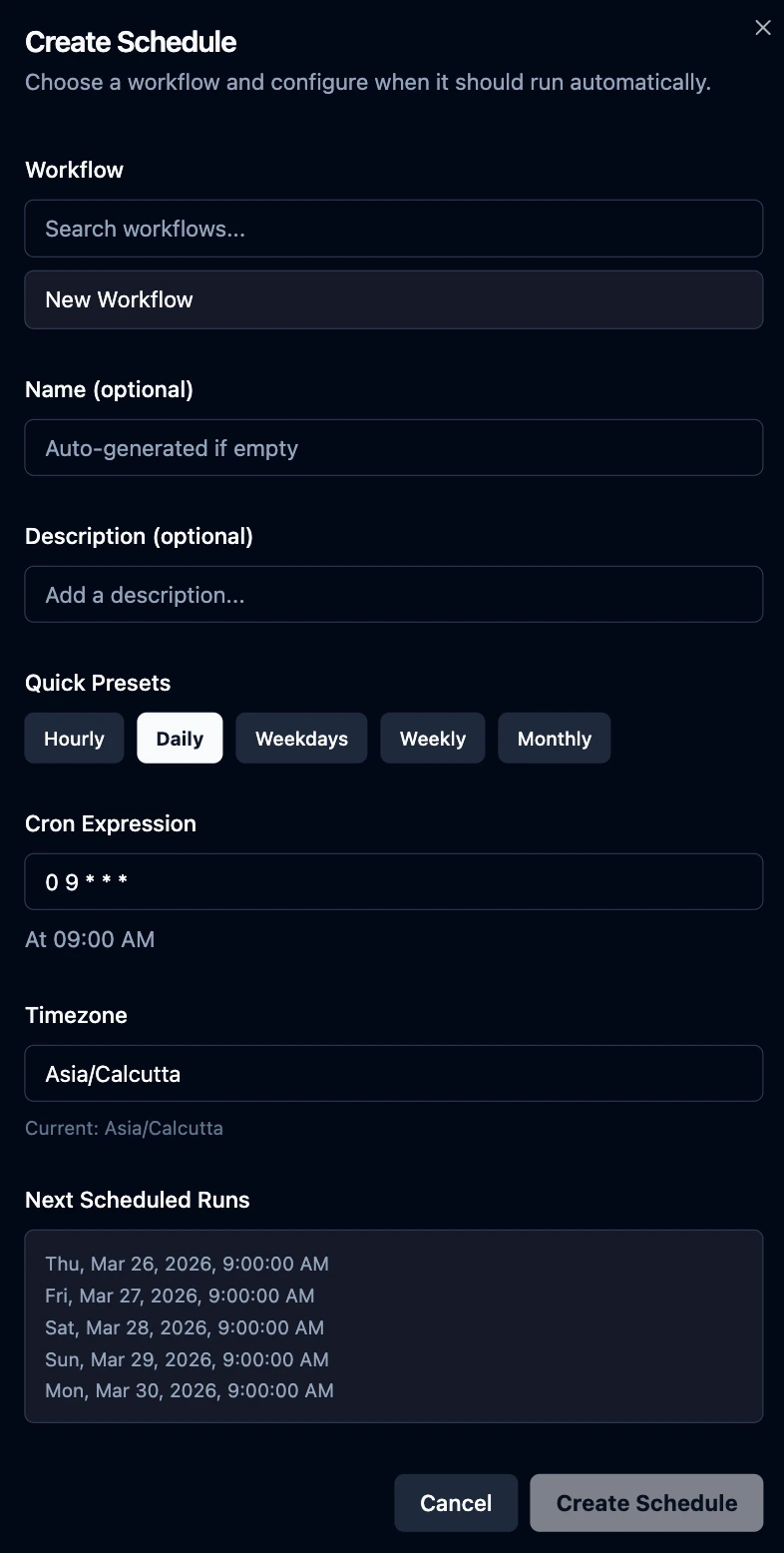
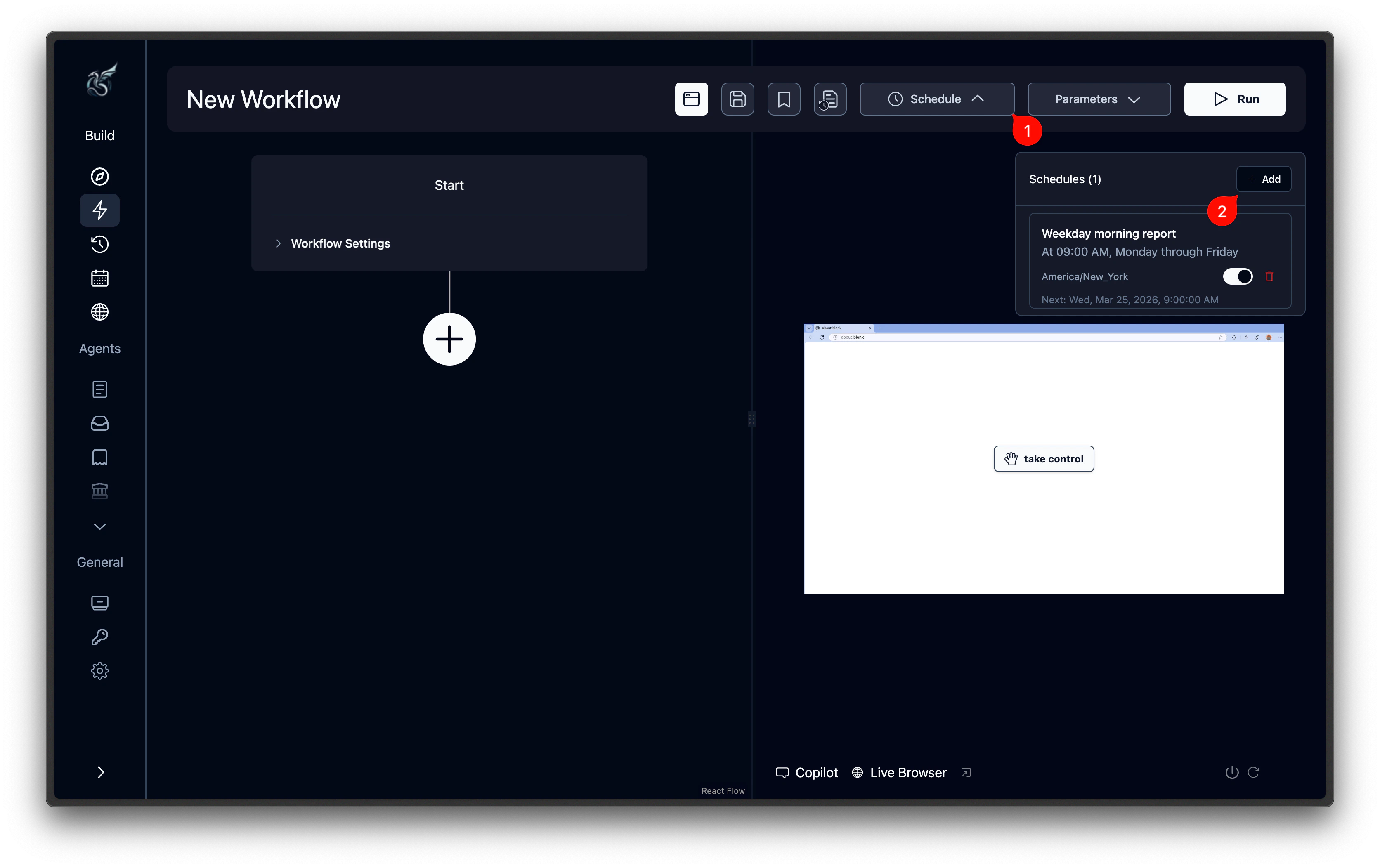
The Schedules page
Click Schedules in the left sidebar to see every schedule across all workflows. Each row shows:| Column | What it shows |
|---|---|
| Workflow | The workflow this schedule triggers |
| Name | Schedule name |
| Schedule | Human-readable cron description (e.g., “Every weekday at 9:00 AM”) |
| Next Run | Next execution time in your local timezone |
| Status | Active (green) or Paused (gray) |
Editing a schedule
Click a schedule row to open its detail page.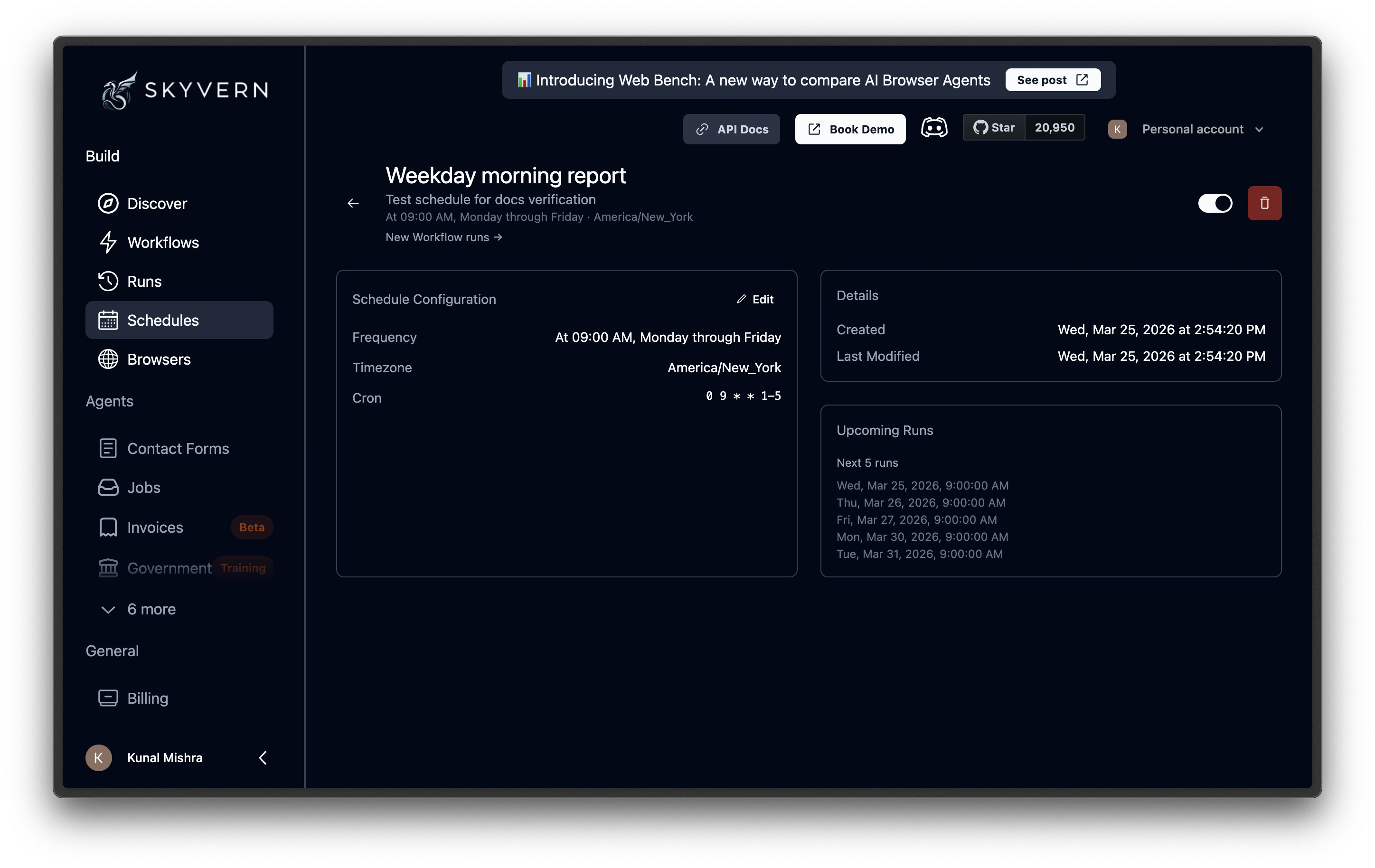
- Edit the schedule configuration: Click the Edit button to change the frequency, timezone, cron expression, name, and description. Changes take effect immediately and the Upcoming Runs preview updates to reflect the new configuration.
- View schedule details: See when the schedule was created and last modified.
- Preview upcoming runs: Check the next 5 scheduled execution times in the Upcoming Runs section.
- Pause or resume: Toggle the Status switch to pause the schedule. Paused schedules keep their configuration and can be resumed at any time: no runs are triggered while paused.
- Delete the schedule: Use the delete button (trash icon) in the header. Deletion is permanent. Runs already triggered by the schedule are not affected.
To change which workflow a schedule runs, delete the schedule and create a new one for the target workflow.
What’s next
Scheduling API
Create and manage schedules programmatically
Run History
View and filter results from scheduled runs
Cost Control
Manage costs for recurring automations