

The agent loop
Every Skyvern automation, whether you trigger it from the dashboard, the API, or a Zapier workflow, runs the same loop: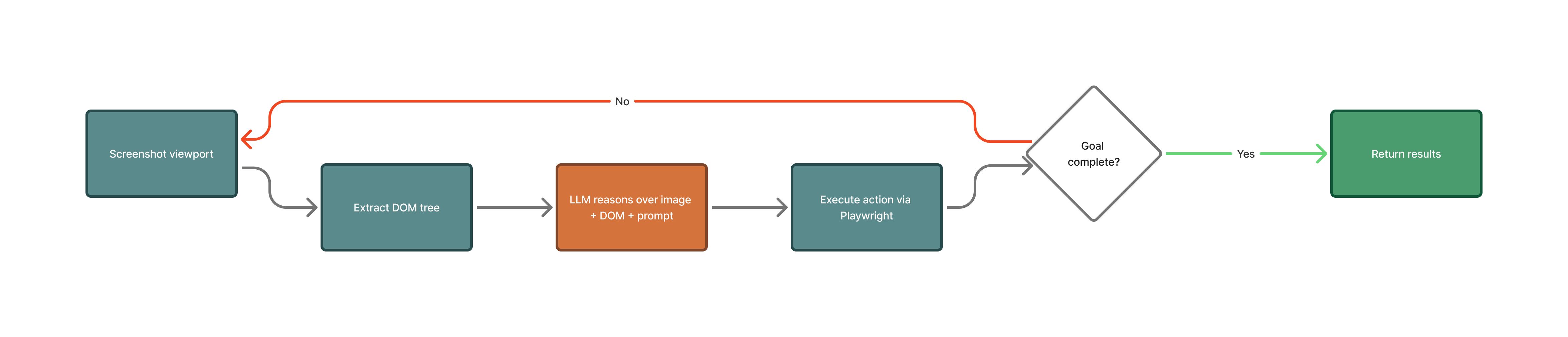
- Screenshot the viewport. Skyvern captures what’s currently on screen, giving the LLM visual context: where buttons are, what forms look like, whether a modal is blocking the page.
- Extract the DOM. The visible page is scraped into a simplified tree of interactive elements (inputs, buttons, links, dropdowns) with their labels and positions. The LLM uses both the screenshot and the DOM together: the image shows layout and visual context, the DOM provides precise element identifiers that Playwright can target.
- LLM decides the next action. The screenshot, DOM tree, and your original prompt go to the LLM. It picks which element to interact with and what to do: click, type, select, scroll, upload. If there’s data to extract, it pulls that too.
- Playwright executes. The action runs in a real Chromium browser. If credentials are needed, they’re injected directly into the browser at this point. The LLM never sees passwords, TOTP codes, or credit card numbers.
- Check if the goal is met. If not, loop back to step 1 and screenshot the now-changed page. If yes, return the results.
max_steps to cap cost during development.
The Planner-Agent-Validator system
For anything beyond simple single-page tasks, Skyvern 2.0 wraps the agent loop in a higher-level system with three components: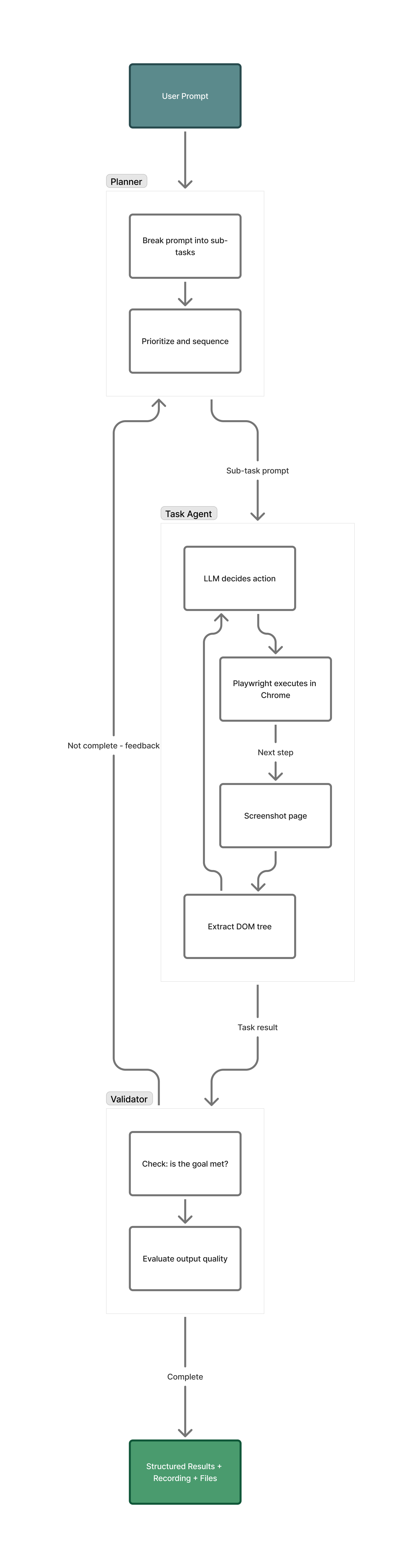
What Skyvern handles for you
Most browser automation breaks down at authentication, CAPTCHAs, or dynamic content. Skyvern handles these natively so you don’t have to build workarounds. Authentication and credentials. You store passwords, TOTP secrets, and credit card numbers through the Credentials API or the dashboard. They’re encrypted at rest and injected directly into browser fields during execution. The LLM orchestrates the login flow (finds the form, clicks submit, handles 2FA prompts) but never sees the actual credential values. Supports Bitwarden, 1Password, and Azure Key Vault as external sources. CAPTCHAs. Automatically detected and solved during execution. You don’t configure anything. Structured data extraction. You can pass a JSON Schema defining exactly what fields you want, and Skyvern extracts typed data that conforms to it. Or you can skip the schema and let Skyvern infer structure from your prompt. File operations. Download files from websites, upload documents to form fields, parse PDFs, CSVs, and Excel files. Downloaded files come back as signed URLs with checksums. Proxy and geolocation. Residential proxies route through real IPs in 30+ countries. Setproxy_location per task when you need to appear from a specific region.
Browser state persistence. Sessions keep a live browser open across multiple tasks for up to 24 hours, useful when you need to chain tasks that share login state. Profiles snapshot cookies, auth tokens, and local storage into a reusable package you can restore on future runs, so you don’t re-authenticate every time.
Multi-step workflows. When a single task isn’t enough, Workflows let you chain blocks together: navigate, login, loop through a list, extract data, branch on conditions, send emails. Workflows are parameterized and version-controlled. You can build them visually in the dashboard or define them through the API.
Get started
Automate from the dashboard
Type what you want, watch it happen live, get results back. Build multi-step workflows with the visual editor. Connect to Zapier, Make, or n8n. No code required.
Integrate via API or SDK
Install the Python or TypeScript SDK, get an API key, and run your first automation in 5 minutes.
Deploy on your own infrastructure
Skyvern is open-source. Run it with Docker, connect your own LLM keys, and keep all data on your network.