

What you’ll build
A workflow that:- Logs into a customer account portal
- Navigates to order history and filters by date
- Extracts order metadata from the page
- Downloads invoice PDFs for each order
- Parses invoice data from each PDF
- Emails a summary with PDFs attached
Prerequisites
- Skyvern Cloud API key — Get one at app.skyvern.com/settings → API Keys
Sample Vendor Portal
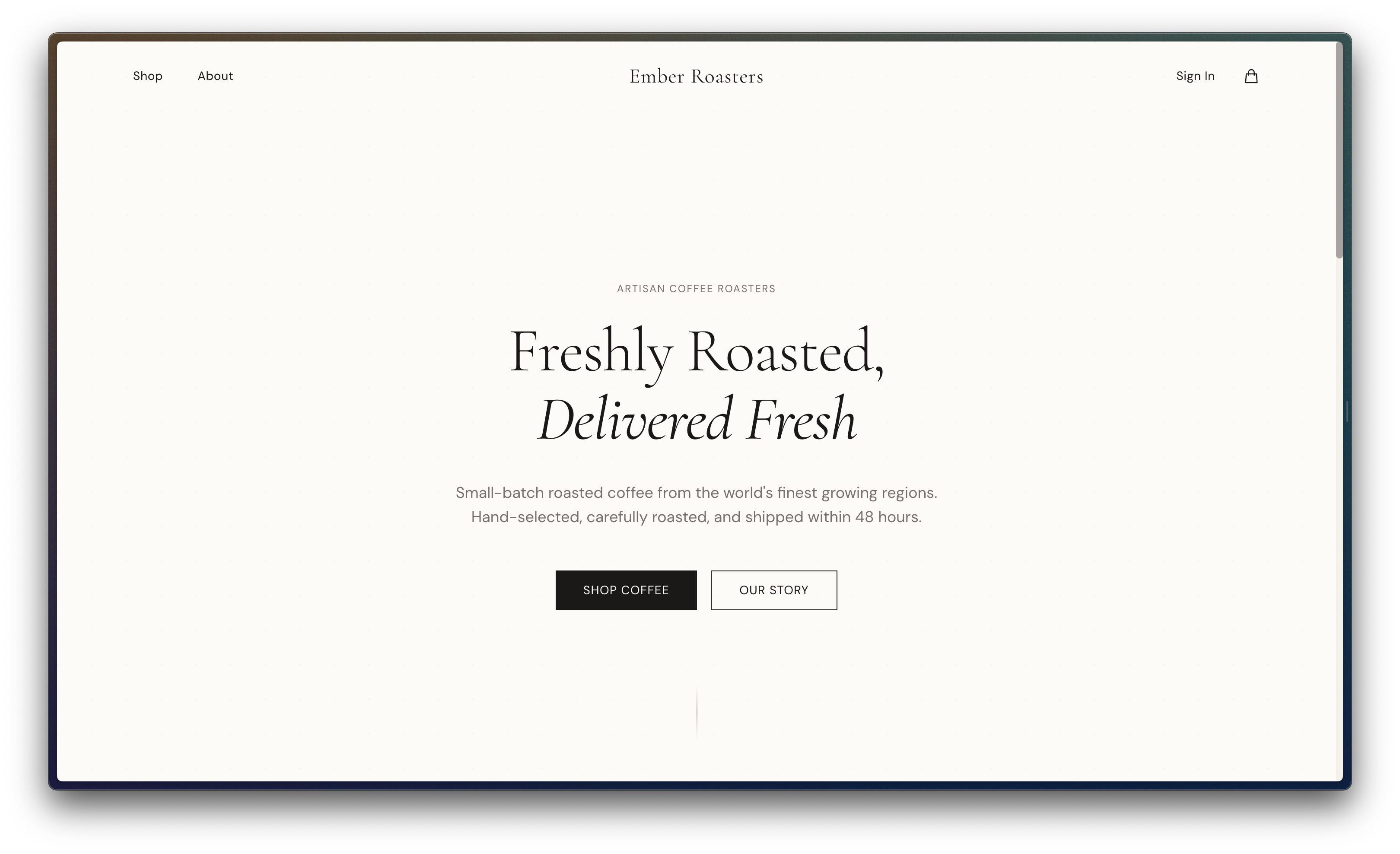
We’ll use Ember Roasters, a fake coffee retailer website created for agent automation testing. Changeportal_url to use your vendor’s portal URL.
| Field | Value |
|---|---|
| URL | https://ember—roasters.vercel.app/ |
| Login email | demo@manicule.dev |
| Login password | helloworld |
Step 1: Store credentials
Before defining the workflow, store the login email and password Skyvern will use. This keeps secrets out of your workflow definition and away from LLMs.- Cloud UI
- API / SDK
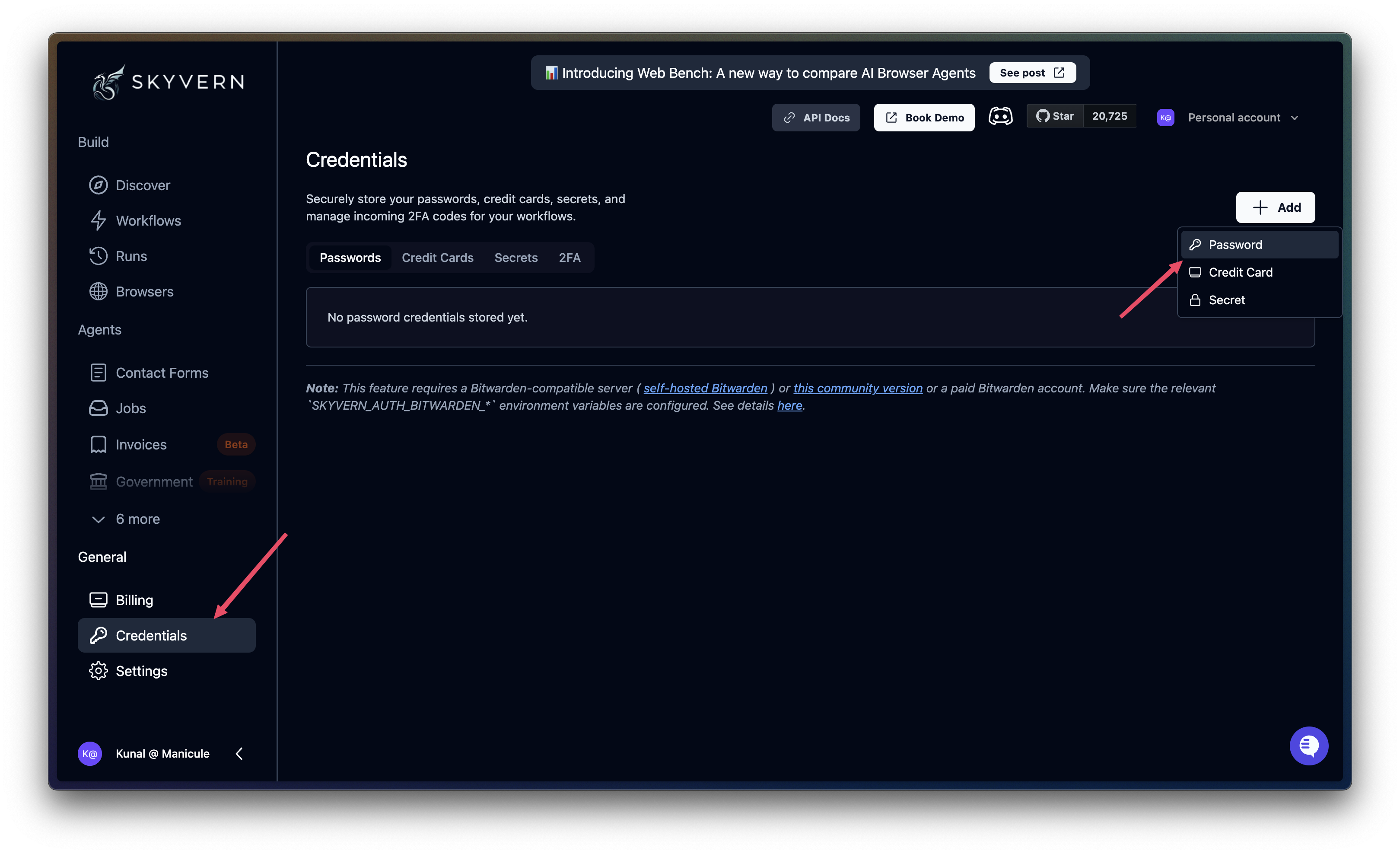
Create a credential
Click Create Credential. Set the name to 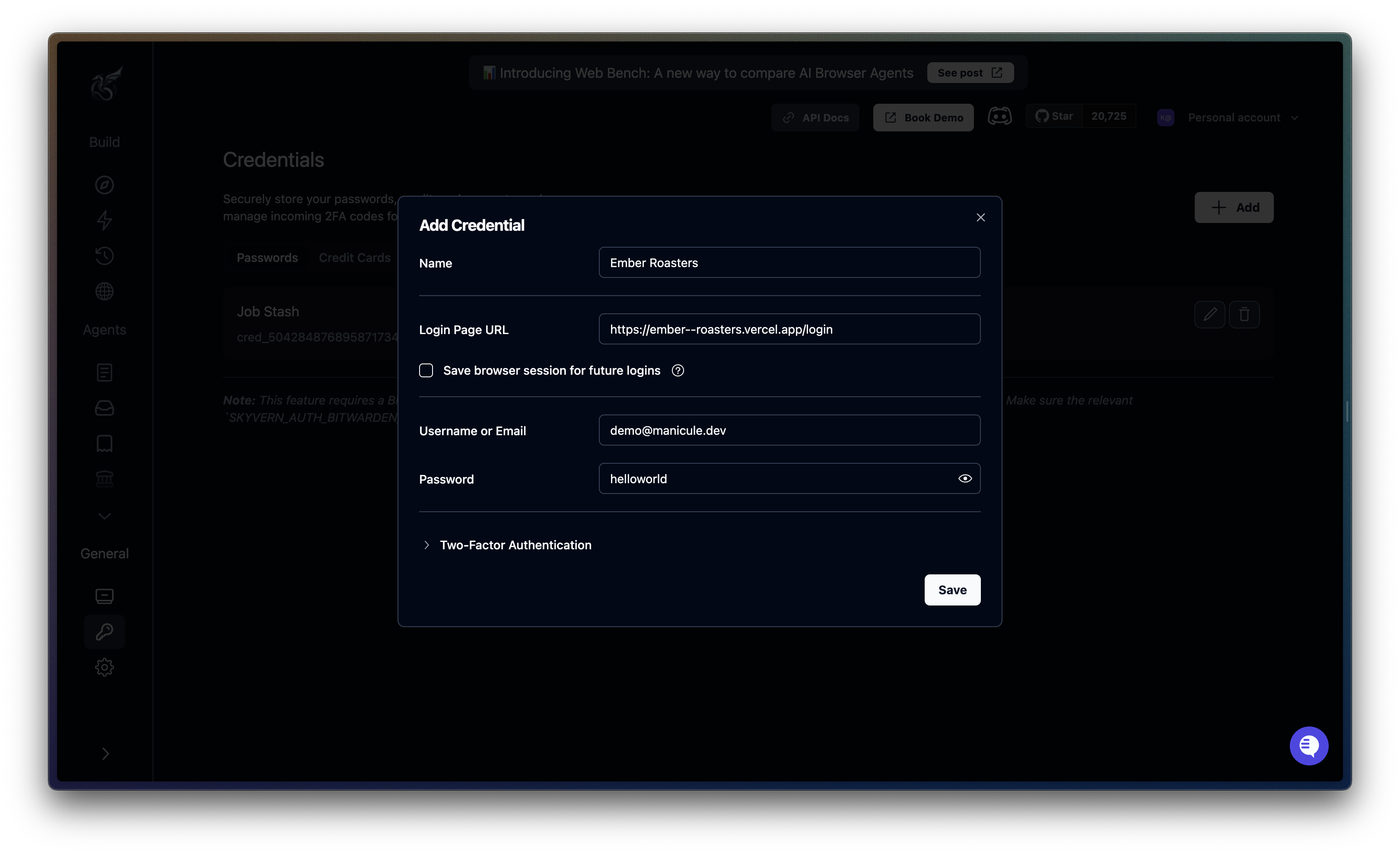
Vendor Portal, add login page URL, and enter the username (demo@manicule.dev) and password (helloworld). Click Save.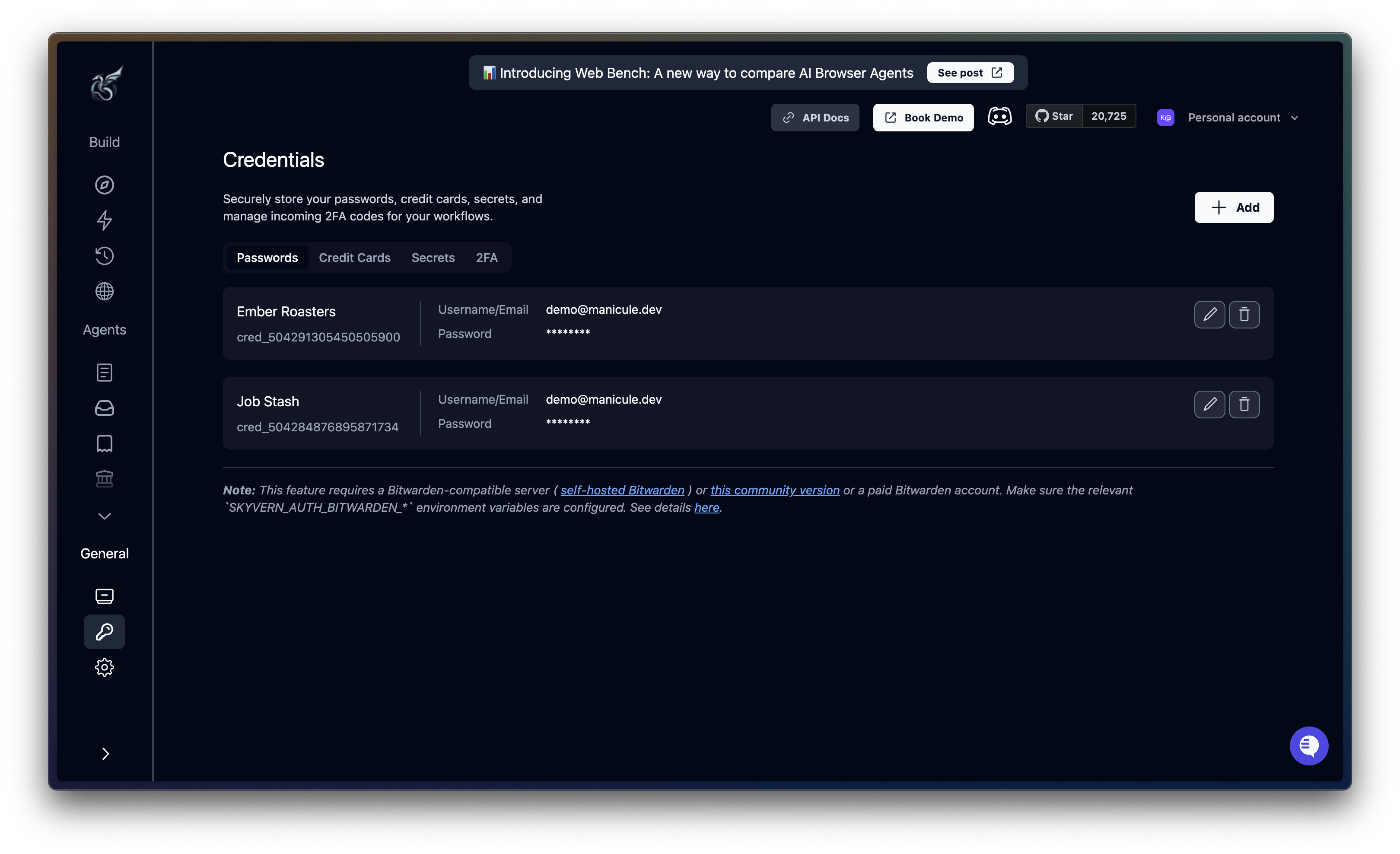
Step 2: Create a new workflow
- Cloud UI
- API / SDK
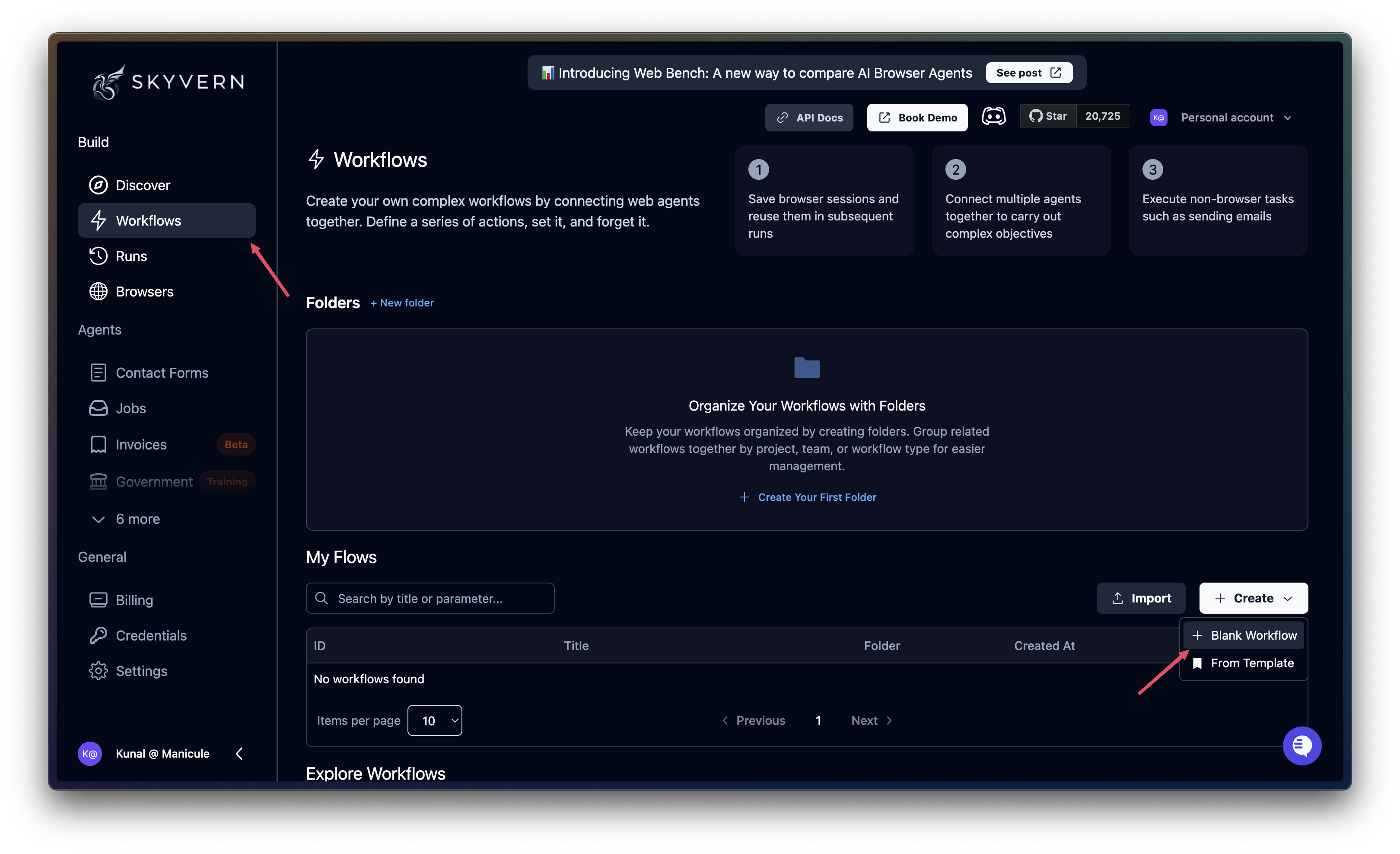
Set parameters
Parameters are the inputs your workflow accepts. Defining them upfront lets you reuse the same workflow against different portals, date ranges, or recipients.- Cloud UI
- API / SDK
On the Start node, add the following parameters:
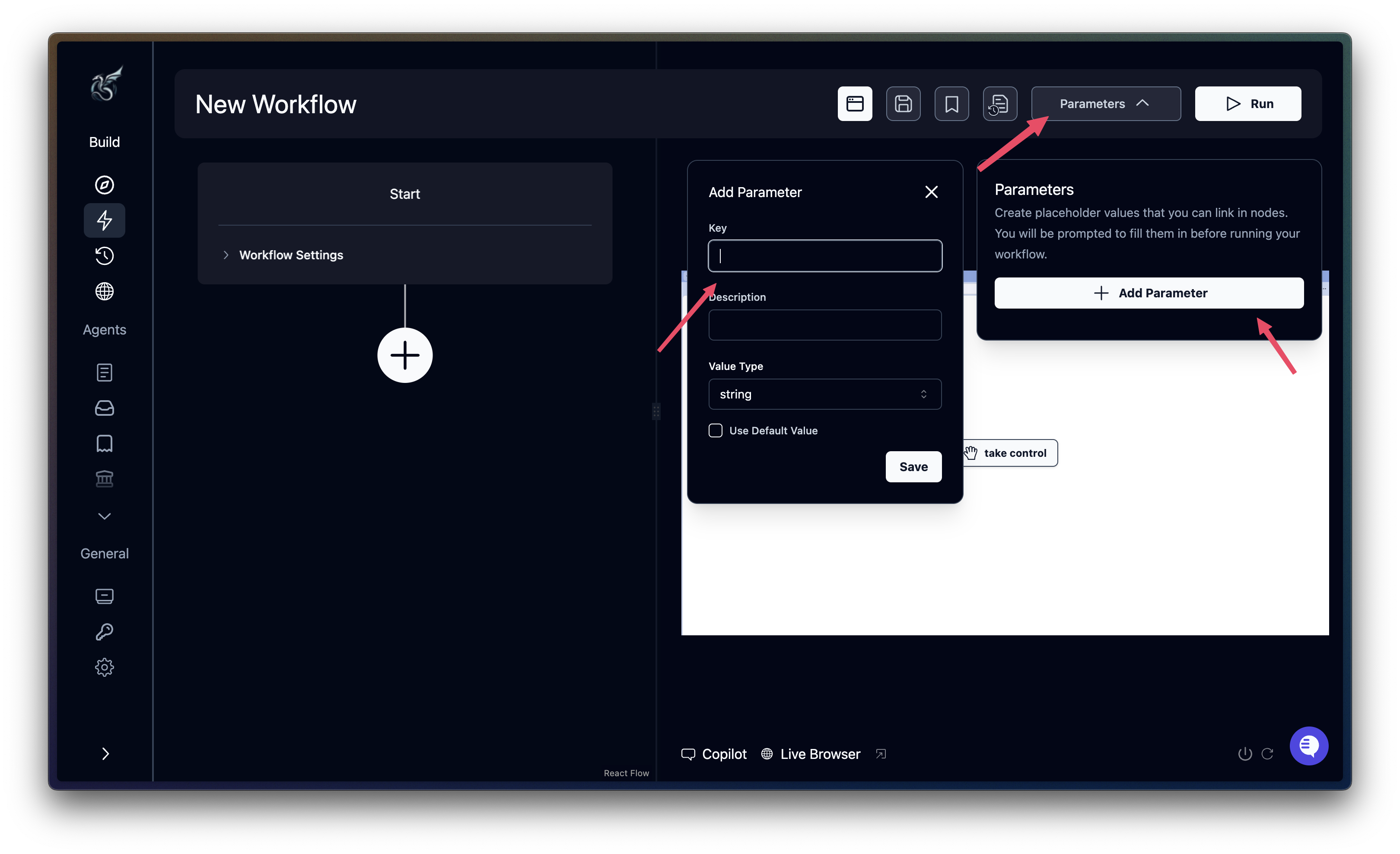
| Parameter | Type | Notes |
|---|---|---|
portal_url | String | Vendor portal login URL |
start_date | String | Filter start date |
end_date | String | Filter end date |
recipient_email | String | Email recipient for the summary |
credentials | Credential ID | Select the credential you created in Step 1 |
SMTP parameters are configured automatically by Skyvern Cloud. For self-hosted deployments, add them as AWS Secret parameters.
Step 3: Add workflow blocks
The workflow chains together several blocks to automate the full invoice collection process:- Login block — Authenticates to the vendor portal using stored credentials
- Navigation block — Navigates to order history and applies date filters
- Extraction block — Extracts order metadata from the filtered results
- For loop + File download — Iterates over each order and downloads its invoice PDF
- For loop + File parser — Parses each downloaded PDF to extract structured data
- Send email — Sends a summary with PDFs attached to the recipient
blocks array in your workflow definition file.
Login block
Thelogin block authenticates using stored credentials. Skyvern injects the username/password directly into form fields without exposing them to the LLM.
- Cloud UI
- API / SDK
Add a Login block. Configure it as follows: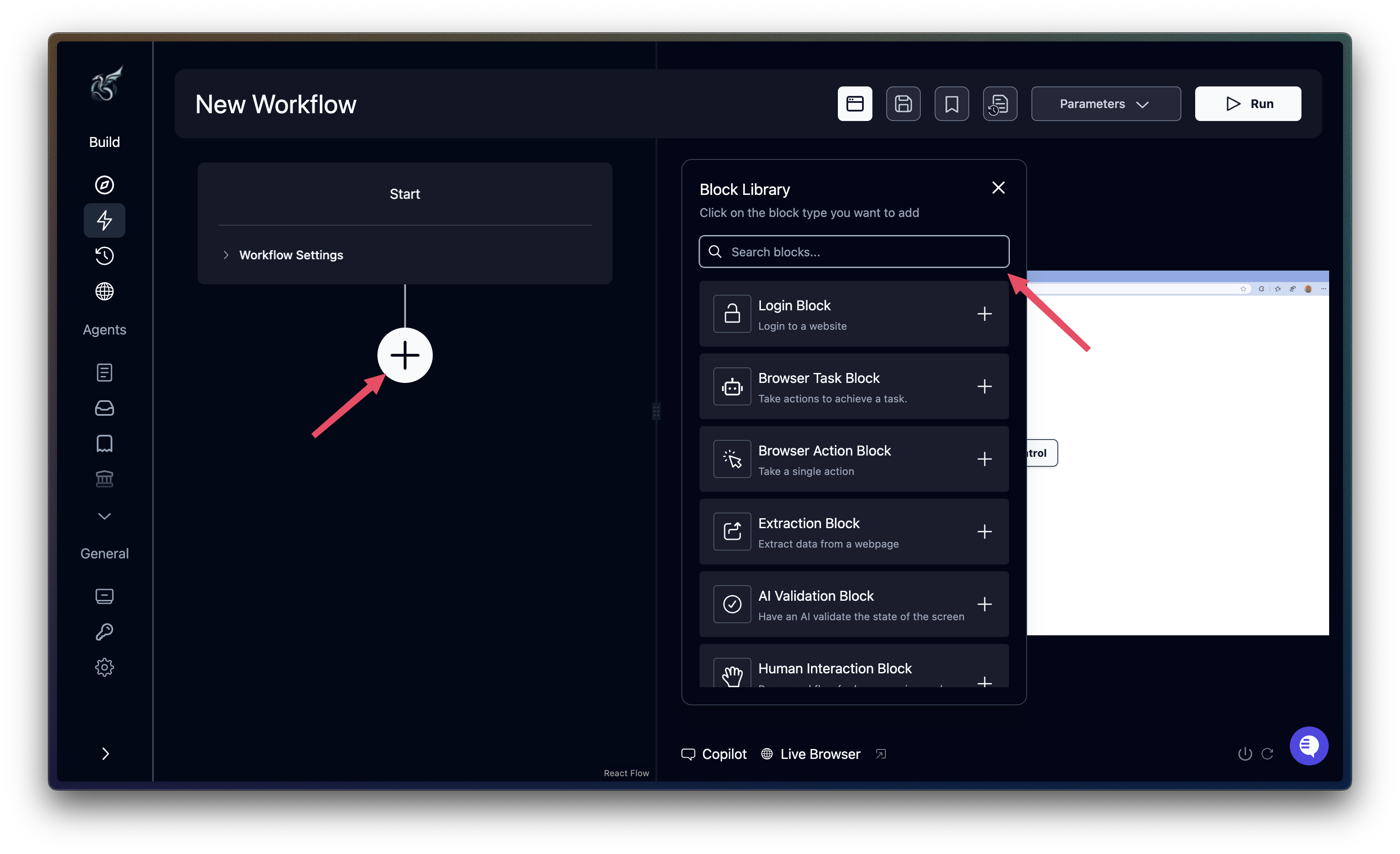
- URL: set to the
portal_urlparameter - Credential: Select the
credentialsparameter - Goal: “Log in using the provided credentials. Handle any cookie consent popups. COMPLETE when on the account dashboard or orders page.”
- In Advanced Settings, enable Error Messages and add:
INVALID_CREDENTIALS: “Login failed - incorrect email or password”ACCOUNT_LOCKED: “Account has been locked or suspended”
error_code_mapping? It surfaces specific failures in your workflow output, so you can handle “wrong password” differently from “account locked.”
Navigation block
Navigate to the orders page and apply the date filter.- Cloud UI
- API / SDK
Add a Navigation block. Configure it as follows:
- URL: Leave empty (continues from the current page after login)
- Parameter Keys: Select
start_dateandend_date - Goal: “Navigate to Order History or My Orders. Filter orders between
start_dateandend_date. Click the Filter button. COMPLETE when filtered results are visible.”
Extraction block
Extract order metadata from the filtered results. Thedata_schema tells Skyvern exactly what structure to return.
- Cloud UI
- API / SDK
Add an Extraction block. Configure it as follows:
- Goal: “Extract all visible orders: order ID, date, total amount, and status.”
- Data Schema: Paste the following JSON schema:
data_extraction_block_output.orders in subsequent blocks.
Download invoices block
Iterate over each order and click its “Download Invoice” button.continue_on_failure: true ensures one failed download doesn’t stop the entire workflow.
- Cloud UI
- API / SDK
Add a For Loop block. Set the Loop Variable to
data_extraction_block_output.orders. Enable Continue on Failure and Next Loop on Failure.Inside the loop, add a File Download block:- Goal: “Find order (current order ID). Click Download Invoice. COMPLETE when the PDF download starts.”
- Download Suffix:
invoice_(order_id).pdf
current_value gives you the current item being iterated over.
Parse invoices block
Usefile_url_parser to extract structured data from each downloaded PDF.
- Cloud UI
- API / SDK
Add another For Loop block. Set the Loop Variable to
data_extraction_block_output.orders. Enable Continue on Failure and Next Loop on Failure.Inside the loop, add a File URL Parser block:- File URL:
SKYVERN_DOWNLOAD_DIRECTORY/invoice_(order_id).pdf - File Type: PDF
- JSON Schema: Paste the following:
for_2_block_output in subsequent blocks.
Email block
Send a summary email with PDFs attached.- Cloud UI
- API / SDK
Add a Send Email block. Configure it as follows:
- Sender:
hello@skyvern.com - Recipients: set to the
recipient_emailparameter - Subject: “Ember Roasters Invoices from (start_date) to (end_date)”
- Body: set to the
for_2_block_outputvariable - File Attachments:
SKYVERN_DOWNLOAD_DIRECTORY
Complete workflow
- Cloud UI
- API / SDK
Here’s a summary of the complete workflow you’ve built in the visual editor:
Create the workflow
Go to Workflows and click Create Workflow. Name it “Bulk Invoice Downloader.” On the Start node, set Proxy Location to Residential and add the parameters:
portal_url, start_date, end_date, recipient_email, and credentials.Block 1: Login
Add a Login block. Set URL to the
portal_url parameter. Select the credentials parameter. Set the goal: “Log in using the provided credentials. Handle any cookie consent popups. COMPLETE when on the account dashboard or orders page.” In Advanced Settings, add error messages for INVALID_CREDENTIALS and ACCOUNT_LOCKED.Block 2: Navigation — filter orders
Add a Navigation block. Leave URL empty (continues from login). Add
start_date and end_date as parameter keys. Set the goal: “Navigate to Order History or My Orders. Filter orders between start_date and end_date. Click the Filter button. COMPLETE when filtered results are visible.”Block 3: Extraction — order metadata
Add an Extraction block. Set the goal: “Extract all visible orders: order ID, date, total amount, and status.” Paste the orders JSON schema into Data Schema.
Block 4: For Loop — download invoices
Add a For Loop block. Set Loop Variable to
data_extraction_block_output.orders. Enable Continue on Failure and Next Loop on Failure. Inside the loop, add a File Download block with goal: “Find order (current order ID). Click Download Invoice. COMPLETE when the PDF download starts.” Set Download Suffix to invoice_(order_id).pdf.Block 5: For Loop — parse invoices
Add another For Loop block with the same loop variable. Inside the loop, add a File URL Parser block. Set File URL to
SKYVERN_DOWNLOAD_DIRECTORY/invoice_(order_id).pdf, File Type to PDF, and paste the invoice JSON schema.Step 4: Run and monitor
Create the workflow from your definition file and execute it.- Cloud UI
- API / SDK
Run the workflow
Click Run in the workflow editor. Fill in the parameters:
- portal_url:
https://ember--roasters.vercel.app/ - start_date:
2025-01-01 - end_date:
2025-01-31 - recipient_email: Your email address
- credentials: Select the
Vendor Portalcredential
Resources
Workflow Blocks Reference
Complete parameter reference for all block types
Credential Management
Securely store and use login credentials
File Operations
Download, parse, and upload files in workflows
Error Handling
Handle failures and retries in production