

What you’ll build
A workflow that:- Parses your resume PDF to extract structured information
- Logs into a job portal using saved credentials
- Searches for relevant jobs based on your resume
- Extracts a list of matching job postings
- For each job: extracts details, generates tailored answers, and submits the application
Prerequisites
- Skyvern Cloud API key — Get one at app.skyvern.com/settings → API Keys
Sample Job Portal
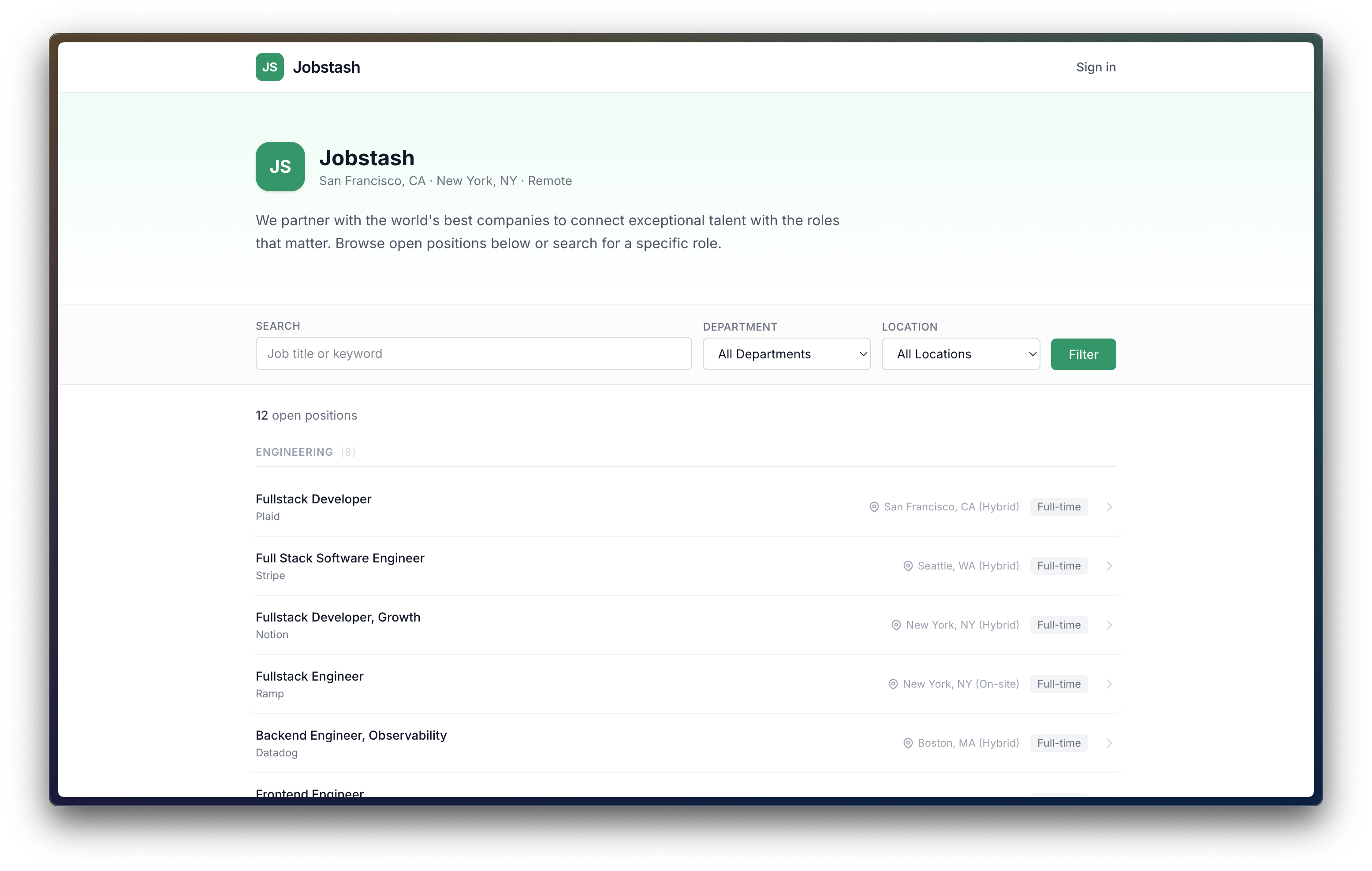
We’ll use Job Stash, a fake job board website created for agent automation testing. Changejob_portal_url to use your job portal’s URL.
| Field | Value |
|---|---|
| URL | https://job-stash.vercel.app |
| Login email | demo@manicule.dev |
| Login password | helloworld |
Step 1: Store credentials
Before defining the workflow, store the login email and password Skyvern will use. This makes sure your passwords are never stored in the shareable workflow definition and never sent to LLMs.- Cloud UI
- API / SDK
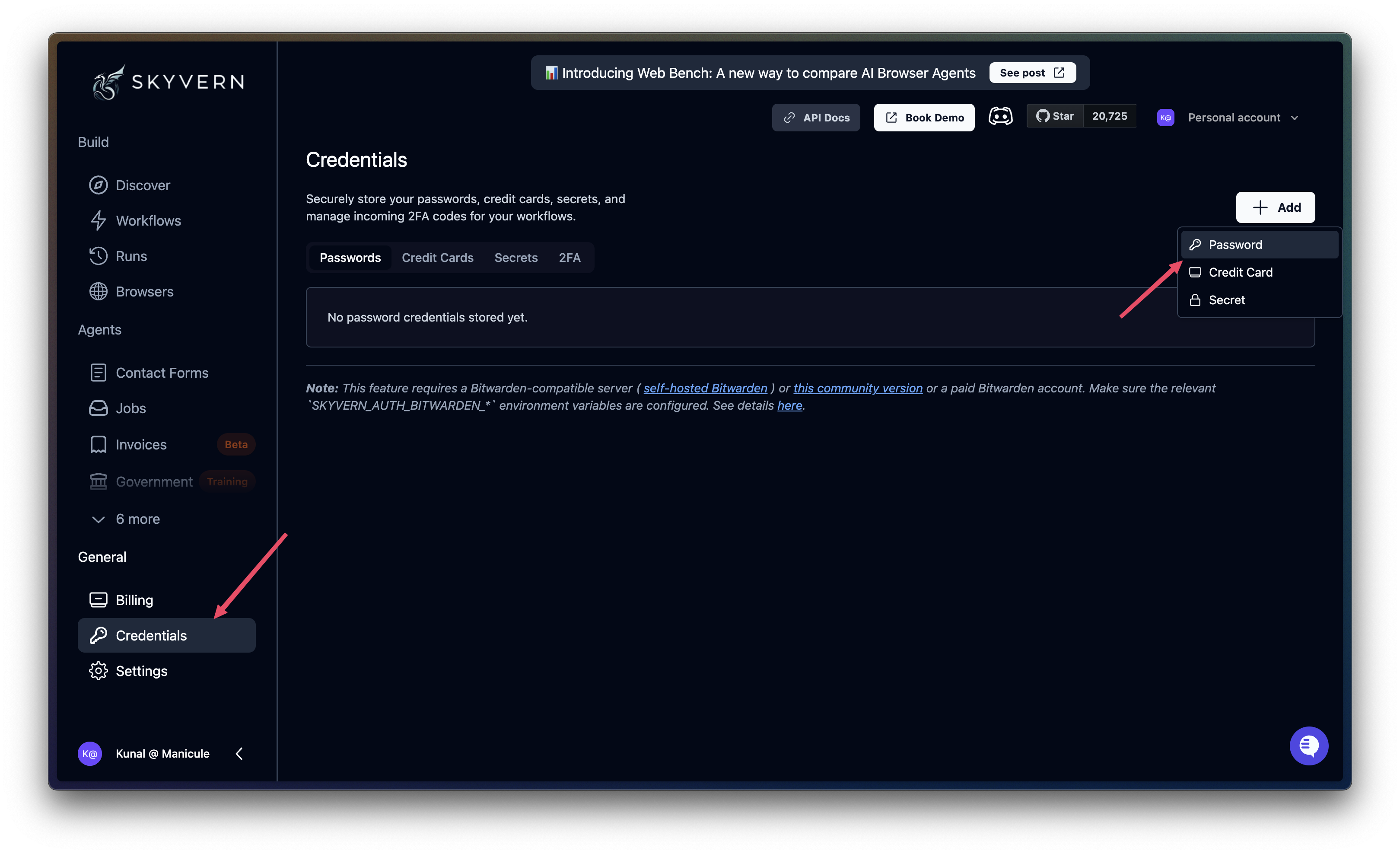
Create a credential
Click Create Credential. Set the name to 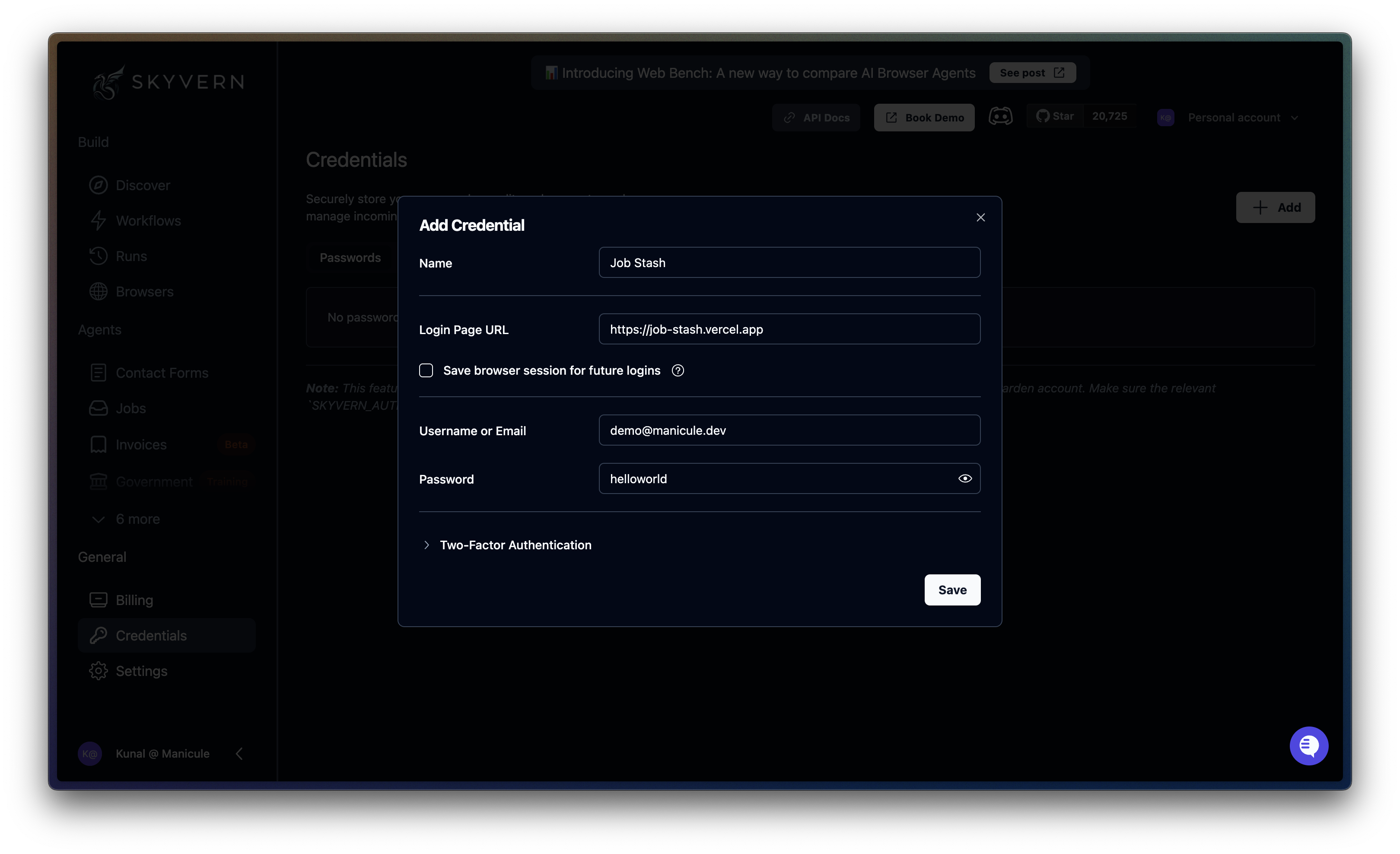
Job Stash, add login page URL, and enter the username (demo@manicule.dev) and password (helloworld). Click Save.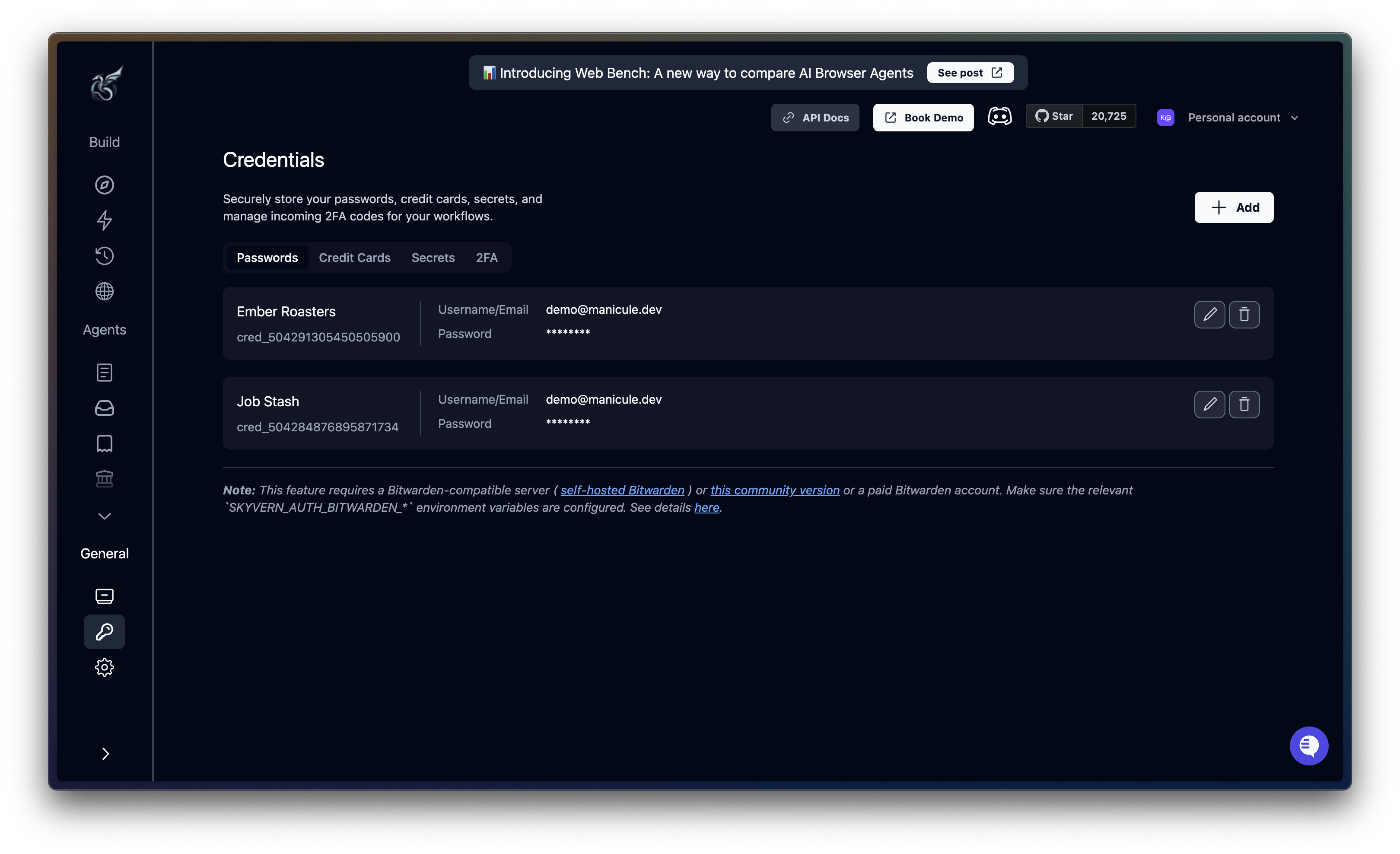
Step 2: Create a new workflow
- Cloud UI
- API / SDK
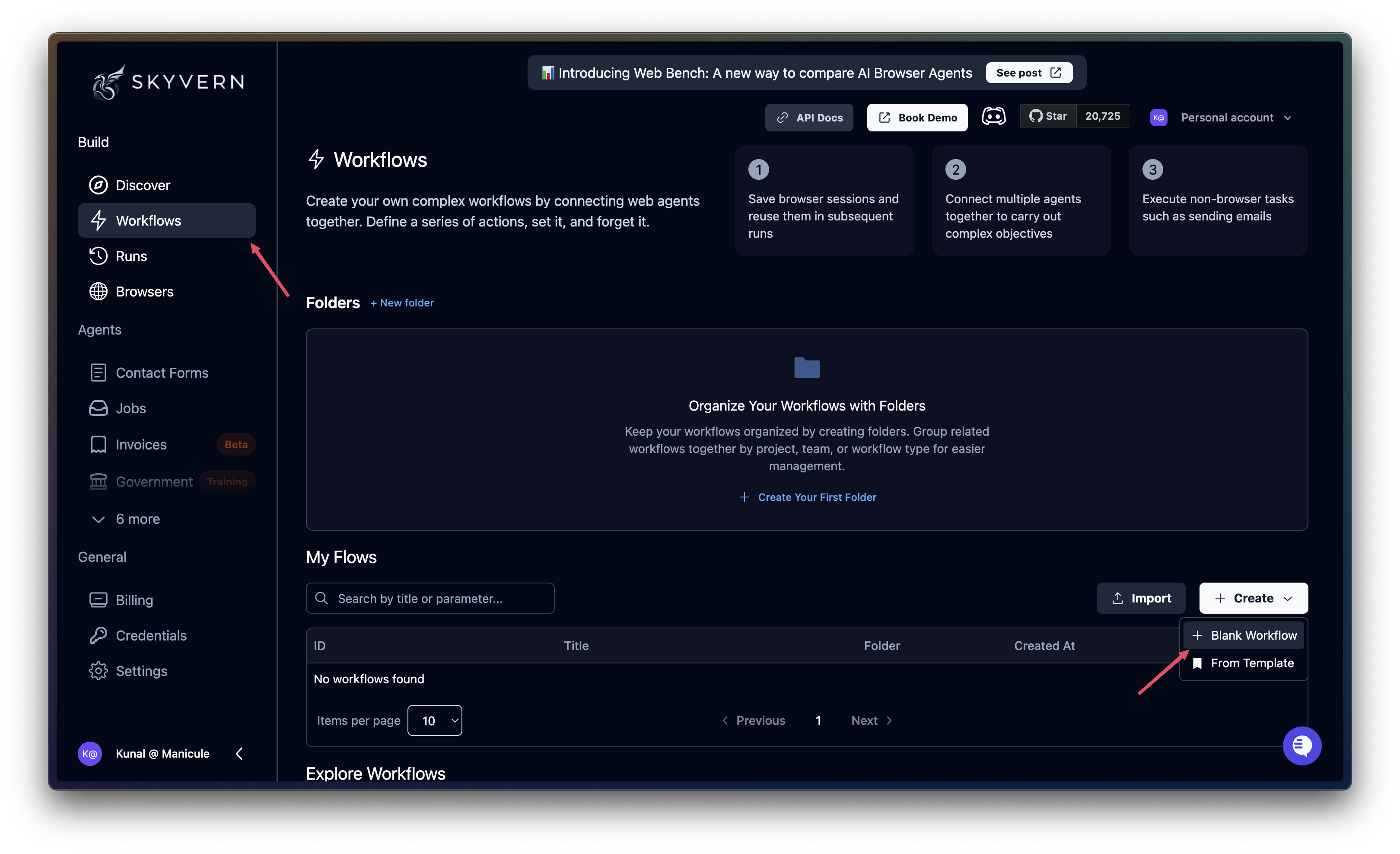
Set parameters
Parameters are the inputs your workflow accepts. Defining them upfront lets you reuse the same workflow against different job portals.- Cloud UI
- API / SDK
On the Start node, add the following parameters:
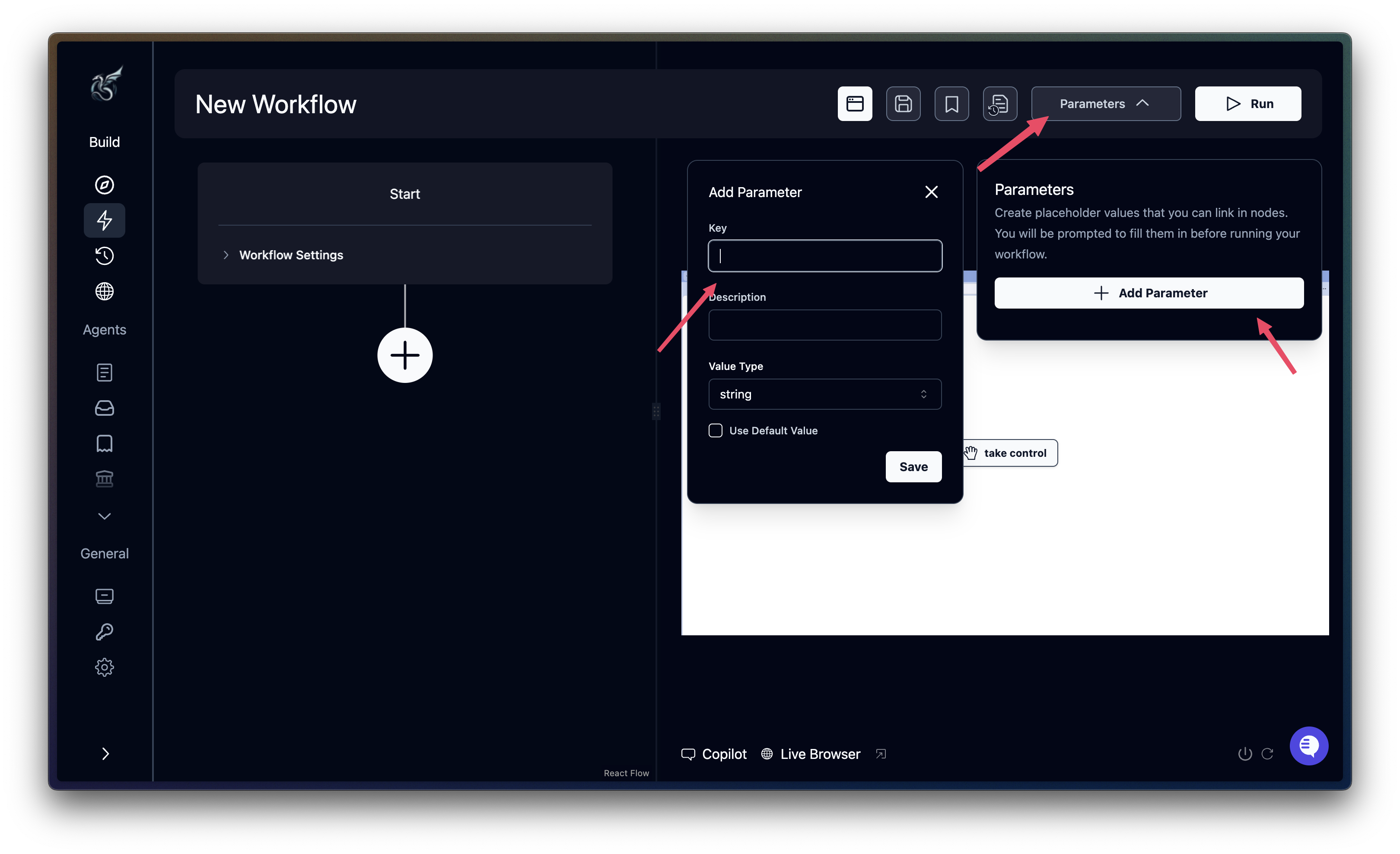
| Parameter | Type | Notes |
|---|---|---|
resume | File URL | URL to your resume PDF |
credentials | Credential ID | Select the credential you created in Step 1 |
job_portal_url | String | Job portal login URL |
Step 3: Add workflow blocks
The workflow chains together several blocks to automate the full job application process:- PDF Parser block — Extracts structured data from your resume
- Login block — Authenticates to the job portal using stored credentials
- Navigation block — Searches for relevant jobs based on your resume
- Extraction block — Extracts a list of job postings from search results
- For loop (Go to URL + Extraction + Action + Extraction + Text Prompt + Navigation) — Iterates over each job to extract details, generates tailored answers using an LLM, and submits the application.
blocks array in your workflow definition file.
PDF Parser block
Thepdf_parser block extracts structured information from your resume PDF. Skyvern uses AI to identify your name, contact info, work experience, education, and skills.
- Cloud UI
- API / SDK
Add a PDF Parser block. Set File URL to the 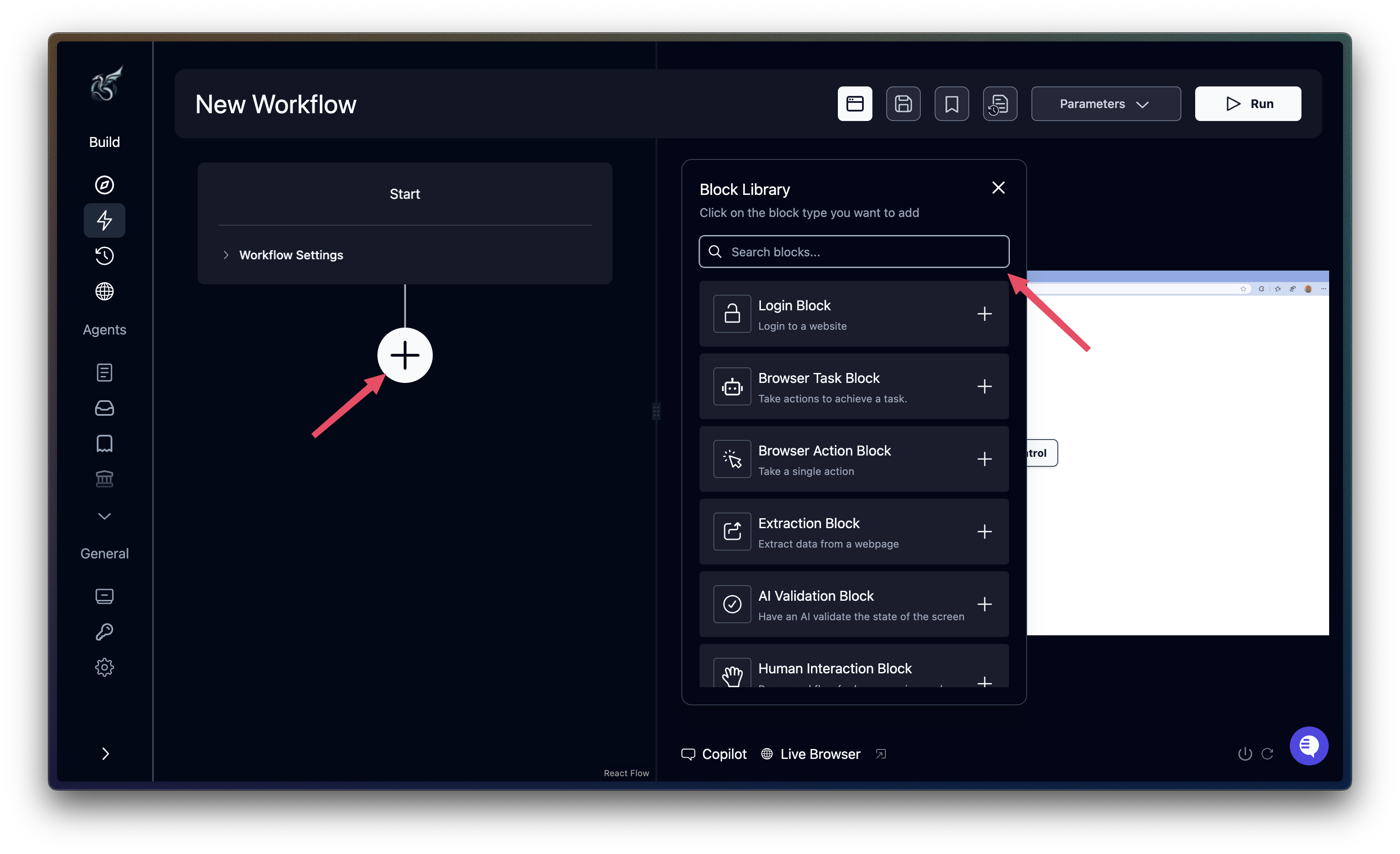
resume parameter.parsed_resume_output in subsequent blocks.
Login block
Thelogin block authenticates using stored credentials. Skyvern injects the username/password directly into form fields without exposing them to the LLM.
- Cloud UI
- API / SDK
Add a Login block. Configure it as follows:
- URL: set to the
job_portal_urlparameter - Credential: Select the
credentialsparameter - Goal: “Log in using the provided credentials. Handle any cookie consent popups. COMPLETE when on the account dashboard or orders page.”
Search for jobs block
Navigate to the job search and find relevant positions based on the parsed resume.- Cloud UI
- API / SDK
Add a Navigation block. Configure it as follows:
- URL: Leave empty (continues from the current page after login)
- Goal: “Search for a relevant job based on the parsed resume.” The block will automatically reference the
parsed_resume_outputfrom the previous step.
Extract jobs list block
Extract job postings from the search results. Thedata_schema tells Skyvern exactly what structure to return.
- Cloud UI
- API / SDK
Add an Extraction block. Configure it as follows:
- Goal: “Extract all visible job profiles: job page url, title, employer, location, and type (full time, part time, etc)”
- Data Schema: Paste the following JSON schema:
jobs_list_extraction_output.jobs in subsequent blocks.
Apply to jobs loop
Iterate over each job posting and complete the application. This loop contains multiple blocks that work together:- goto_url — Navigate to the job page
- extraction — Extract detailed job information
- action — Click the Apply button
- extraction — Extract application form questions
- text_prompt — Generate tailored answers using AI
- navigation — Fill out and submit the application
- Cloud UI
- API / SDK
Add a For Loop block. Set the Loop Variable to
jobs_list_extraction_output.jobs. Enable Continue on Failure and Next Loop on Failure.Inside the loop, add the following blocks in order:Extract job details
Add an Extraction block. Set Goal to: “Extract every detail about the job role present on the page.”
Click Apply
Add an Action block. Set Goal to: “Find Apply button and click it. COMPLETE when the job application is visible on the screen.”
Extract form questions
Add an Extraction block. Set Goal to: “Extract every question in the job application form as a list.”
Generate answers
Add a Text Prompt block. Set the Prompt to reference the parsed resume, job details, and extracted questions so the AI generates tailored answers for each field.
continue_on_failure: true ensures that if one application fails, the workflow continues to the next job. Inside the loop, current_value gives you the current job being processed.
Complete workflow definition
- Cloud UI
- API / SDK
Here’s a summary of the complete workflow you’ve built in the visual editor:
Create the workflow
Go to Workflows → Create Workflow. Name it “Search and Apply for Jobs Workflow.” On the Start node, set Proxy Location to Residential and add the parameters:
resume, credentials, and job_portal_url.Block 2: Login
Add a Login block. Set URL to the
job_portal_url parameter. Select the credentials parameter. Set the goal: “Log in using the provided credentials. Handle any cookie consent popups. COMPLETE when on the account dashboard or orders page.”Block 3: Navigation — search for jobs
Add a Navigation block. Leave URL empty. Set the goal: “Search for a relevant job based on the parsed resume.”
Block 4: Extraction — job listings
Add an Extraction block. Set the goal: “Extract all visible job profiles: job page url, title, employer, location, and type.” Paste the jobs JSON schema into Data Schema.
Block 5: For Loop — apply to each job
Add a For Loop block. Set Loop Variable to
jobs_list_extraction_output.jobs. Enable Continue on Failure and Next Loop on Failure. Inside the loop, add six blocks in order: Go to URL (job page), Extraction (job details), Action (click Apply), Extraction (form questions), Text Prompt (generate answers), Navigation (fill and submit the form).Step 4: Run and monitor
Create the workflow from your definition file and execute it.- Cloud UI
- API / SDK
Run the workflow
Click Run in the workflow editor. Fill in the parameters:
- resume: URL to your resume PDF
- job_portal_url:
https://job-stash.vercel.app - credentials: Select the
Job Stashcredential
Resources
Workflow Blocks Reference
Complete parameter reference for all block types
Credential Management
Securely store and use login credentials
File Operations
Upload and parse files in workflows
Error Handling
Handle failures and retries in production