

Opening the parameters panel
In the workflow editor, click the Parameters button in the header bar. A panel appears below the header showing all defined parameters and controls to add new ones.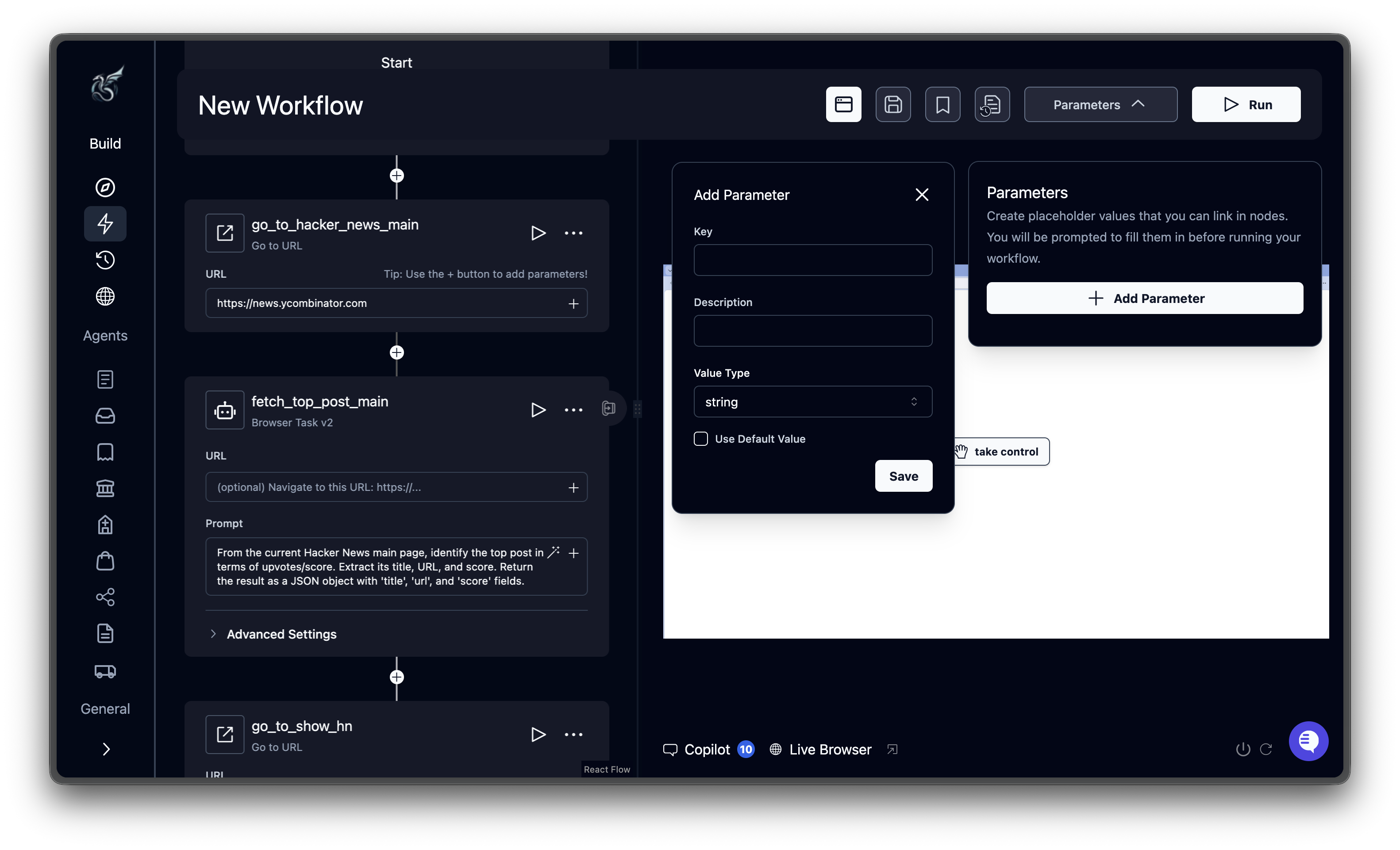
Adding a parameter
Click Add Parameter in the panel. Two types are available:| Type | Use for |
|---|---|
| Input Parameter | Values the user provides when running the workflow (text, numbers, JSON, etc.) |
| Credential Parameter | Securely inject login credentials from a vault (Bitwarden, 1Password, Azure, AWS, or Skyvern) |
Parameter value types
Input parameters support these value types:| Type | Input control | Example |
|---|---|---|
| String | Text field | "https://example.com" |
| Integer | Number field | 10 |
| Float | Number field | 19.99 |
| Boolean | Toggle switch | true |
| JSON | Code editor | {"key": "value"} |
| File URL | Text field (paste a URL) | "https://example.com/data.csv" |
| Credential ID | Dropdown selector (shown at runtime) | Selected from stored credentials |
Referencing parameters in blocks
Use Jinja2 double-brace syntax to reference parameters inside block fields like prompts, URLs, and data schemas. Basic reference:Credential parameters
Credential parameters securely inject login credentials into blocks without exposing them in prompts or logs.| Source | What it provides |
|---|---|
| Skyvern Credential | Username and password stored on the Skyvern Credentials page |
| Bitwarden Login | Username, password, and optional TOTP from your Bitwarden vault |
| Bitwarden Credit Card | Card number, holder name, expiry, and CVV from Bitwarden |
| Bitwarden Sensitive Information | Sensitive data fields from Bitwarden |
| 1Password | Username, password, card data, or TOTP from 1Password |
| Azure Key Vault | Secrets stored in Azure Key Vault |
| AWS Secret | Secrets stored in AWS Secrets Manager |
| Azure Secret | Secrets stored in Azure Secret |
Output parameters
Every block automatically produces an output parameter containing its results. You can reference a previous block’s output in any downstream block. The syntax uses the block’s label (lowercased, spaces replaced with underscores) followed by_output:
Reserved variables
These variable names are built-in and cannot be used as parameter keys:| Variable | Available in | Description |
|---|---|---|
current_value | Loop blocks | The current item being iterated |
current_item | Loop blocks | Alias for current_value |
current_index | Loop blocks | Zero-based index of the current iteration |
workflow_run_id | All blocks | Unique ID of the current run |
workflow_id | All blocks | The workflow’s ID |
workflow_permanent_id | All blocks | The workflow’s permanent ID |
workflow_title | All blocks | The workflow’s title |
What’s next
Block Reference
Configuration fields for every block type
Run Your Workflow
Execute workflows and fill in parameter values