Workflows are built from blocks. Each block performs one specific operation: navigating a page, extracting data, making an API call, or branching logic. This page covers every block type available in the editor , grouped by category.
Quick reference Category Blocks Browser Automation Browser Task, Browser Action, Extraction, Login, Go to URL, Print Page Data and Extraction Text Prompt, File Parser Control Flow Loop, Conditional, AI Validation, Code, Wait Files File Download, Cloud Storage Upload Communication Send Email, HTTP Request, Human Interaction
Common fields These fields appear on most blocks:
Field Description Label Display name on the canvas. Also determines how downstream blocks reference this block’s output ({{ label_output }}). Continue on Failure Allow the workflow to continue if this block fails Next Loop on Failure Only inside loops. Skip to the next iteration on failure. Model Override the default LLM model for this block (Advanced Settings on most blocks)
Browser-based blocks (Browser Task, Browser Action, Extraction, Login, File Download) share these additional fields:
Field Description URL Starting URL. Leave blank to continue from the previous block’s page. Engine AI engine: Skyvern 1.0 or Skyvern 2.0 Max Steps Override Cap the number of AI reasoning steps Disable Cache Skip cached script execution TOTP Identifier Link TOTP credentials for 2FA handling TOTP Verification URL Endpoint for fetching TOTP codes Error Code Mapping Map error conditions to custom error codes (JSON)
Browser Automation Browser Task The primary block for browser automation. Accepts a natural-language prompt and autonomously navigates the browser to accomplish the goal.
The block has two engine modes, selected via the Engine dropdown. The fields shown change depending on which engine you choose.
Skyvern 2.0 (recommended):Field Type Description URL text Starting URL (optional) Prompt text Natural language instructions for the AI Max Steps number Maximum AI steps Disable Cache boolean Skip cached script execution
Skyvern 1.0: Field Type Description URL text Starting URL (optional) Prompt text Natural language instructions for the AI
Additional fields in Advanced Settings (Skyvern 1.0 only):
Field Type Description Complete if… text Condition that signals the block is done Include Action History in Verification boolean Include prior actions when verifying completion Complete on Download switch Mark the block as complete when a file download occurs File Name text Custom filename for downloaded files
Plus common browser fields . Browser Task is the recommended block for most browser automation. Use it for anything from form filling to multi-page navigation. Include your success criteria directly in the prompt so the AI knows when it’s done.
Browser Action Execute a single browser action. Best for precise, one-step operations like clicking a specific button or entering text in a field.
Field Type Description URL text Starting URL (optional) Action Instruction text Specify the single action to perform
Additional fields in Advanced Settings:
Field Type Description Complete on Download switch Mark the block as complete when a file download occurs File Name text Custom filename for downloaded files
Plus common browser fields . Extract structured data from the current page using AI.
Field Type Description Data Extraction Goal text What data to extract Data Schema JSON JSON Schema defining the output format. Enable the checkbox to reveal the editor. Click Generate with AI to auto-suggest a schema from your extraction goal.
Plus common browser fields . Login Authenticate to a website using stored credentials. Pre-filled with a default login goal that handles common login flows including 2FA.
Field Type Description URL text Login page URL Login Goal text Login instructions (pre-filled with a comprehensive default) Credential selector Select stored credentials for authentication
Additional fields in Advanced Settings:
Field Type Description Complete if… text How to know login succeeded
Plus common browser fields . Go to URL Navigate the browser directly to a specific URL without AI interaction.
Field Type Description URL text (Required) The URL to navigate to. Supports parameter references .
Print Page Print the current browser page to a PDF file. The PDF is saved as a downloadable artifact.
Field Type Description Page Format select Paper size: A4, Letter, Legal, or Tabloid Print Background boolean Include CSS background colors and images in the PDF Headers & Footers boolean Add date, title, URL, and page numbers to the PDF
Additional fields in Advanced Settings:
Field Type Description Custom Filename text Custom name for the generated PDF Landscape boolean Use landscape orientation
Data and Extraction Text Prompt Send text to the LLM for processing without browser interaction. Useful for summarizing, transforming, or analyzing data between browser steps.
Field Type Description Prompt text The text prompt to send to the LLM Model selector Which LLM model to use Data Schema JSON Expected output structure. Enable the checkbox to reveal the editor. Click Generate with AI to auto-suggest a schema.
File Parser Parse PDFs, CSVs, Excel files, and images to extract structured data.
Field Type Description File URL text URL or parameter reference to the file Data Schema JSON Schema for the extracted output. Enable the checkbox to reveal the editor. Model selector Which LLM model to use
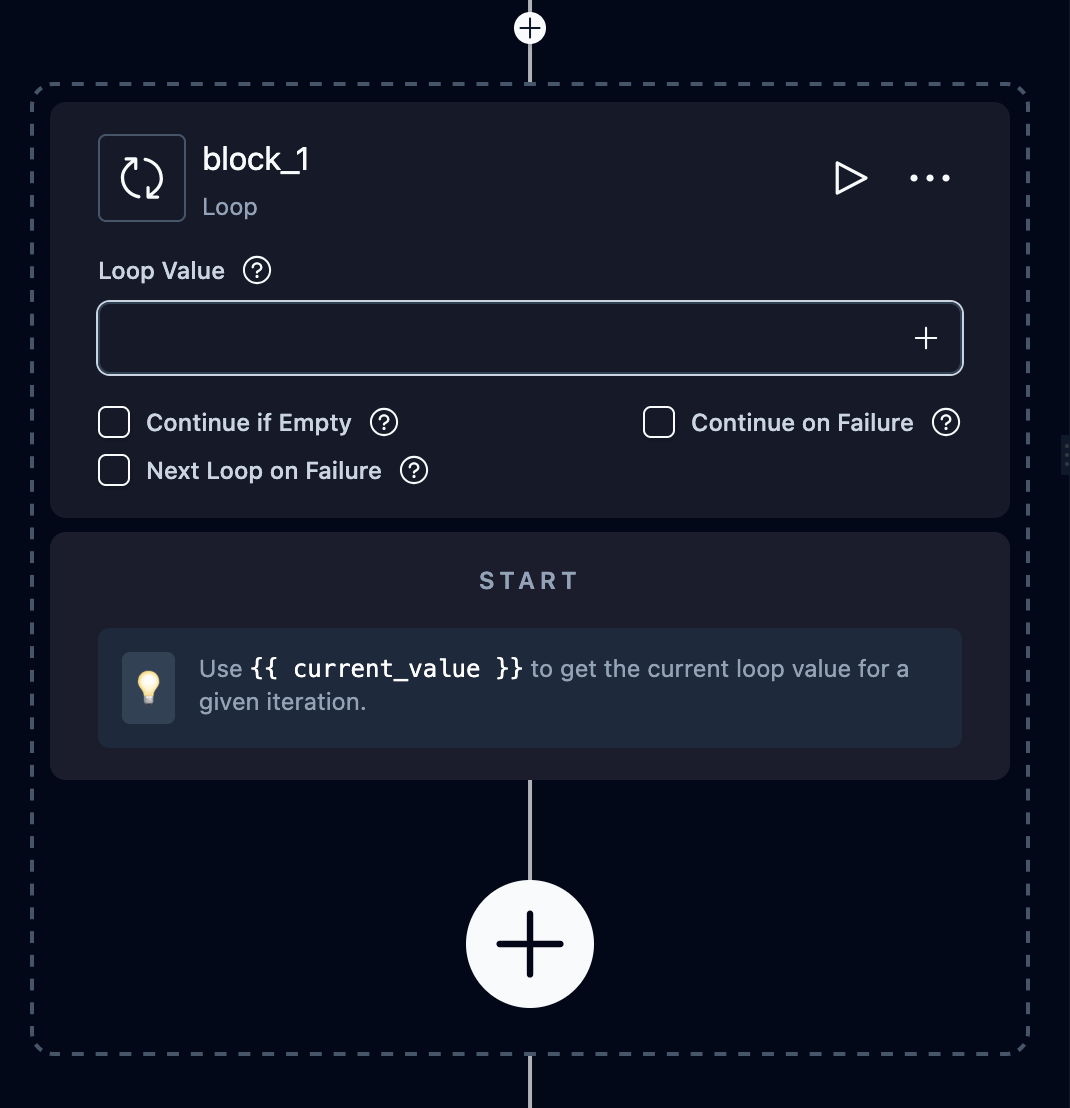
Control Flow Loop Repeat a sequence of blocks for each item in a list. Child blocks are placed inside the loop on the canvas.
Field Type Description Loop Value text The list to iterate over. Use a parameter reference (e.g., {{ my_list }}) or a natural language description (e.g., “Extract links of the top 5 posts”) which triggers automatic extraction. Continue if Empty boolean Mark the loop as complete if the list is empty
Inside loop blocks, use these reserved variables :
{{ current_value }}: the current item{{ current_index }}: the iteration number (0-based)
Conditional Branch the workflow based on conditions. The UI shows branches as tabs (A, B, C, etc.). Each branch has an expression that determines when it executes. Expressions can be Jinja2 templates or natural language prompts.
Field Type Description Branches tabs One or more conditions. Each branch has an Expression field. Click + to add branches. Else branch auto Automatically added. Executes when no other condition matches.
Example Jinja2 expression: {{ extraction_output.price > 100 }}
AI Validation Assert conditions using AI and halt the workflow on failure. Useful for checking that a previous block produced expected results before continuing.
Field Type Description Complete if… text Condition that means validation passed Terminate if… text Condition that means validation failed
Additional fields in Advanced Settings:
Field Type Description Error Code Mapping JSON Custom error codes for failure reasons Input Parameters select Parameters to evaluate
Code Execute custom Python code. Input parameters are available as global variables. Top-level variables in your code become the block’s output.
Field Type Description Code code editor Python code to execute Input Parameters select Parameters available as globals in the code
Wait Pause workflow execution for a specified duration.
Field Type Description Wait in Seconds number Seconds to wait (0–300)
Files File Download Navigate the browser to download a file.
Field Type Description URL text Starting URL (optional) Download Goal text Instructions for finding and downloading the file Download Timeout (sec) number Seconds to wait for the download to complete
Additional fields in Advanced Settings:
Field Type Description File Name text Custom filename for the download
Plus common browser fields . Cloud Storage Upload Upload downloaded files to S3 or Azure Blob Storage.
Field Type Description Storage Type select Amazon S3 or Azure Blob StorageFolder Path text Upload path/prefix (optional)
Field Description S3 Bucket Bucket name AWS Access Key ID AWS credential AWS Secret Access Key AWS credential Region Name AWS region
Field Description Storage Account Name Storage account name Storage Account Key Storage account key Blob Container Name Container name
Communication Send Email Send an email notification, optionally with file attachments from previous blocks.
Field Type Description Recipients text Comma-separated email addresses Subject text Email subject line Body text Email body. Supports parameter references . File Attachments text Path to files to attach
HTTP Request Make an API call to an external service. Click Import cURL in the block header to populate fields from a cURL command.
Field Type Description Method select GET, POST, PUT, PATCH, DELETE, HEAD, OPTIONS URL text Request URL. Supports parameter references. Headers JSON HTTP headers. Use Quick Headers to add common headers. Body JSON Request body (POST/PUT/PATCH only) Files JSON File uploads (POST/PUT/PATCH only)
Additional fields in Advanced Settings:
Field Type Description Timeout number Request timeout in seconds (1–300, default: 30) Follow Redirects boolean Automatically follow HTTP redirects (default: true) Continue on Failure boolean Continue workflow if the request fails Save Response as File boolean Save the response body as a downloadable file Download Filename text Filename for the saved response (shown when Save Response as File is enabled)
Human Interaction Pause the workflow and request human input. Optionally sends an email notification to reviewers.
Field Type Description Instructions For Human text Instructions displayed to the reviewer Timeout (minutes) number Minutes to wait before auto-continuing (default: 120 minutes / 2 hours)
Email notification fields: Field Type Description Recipients text Email addresses to notify (comma-separated) Subject text Notification email subject Body text Notification email body
Additional fields in Advanced Settings:
Field Type Description Positive Button Label text Label for the approval action (default: “Approve”) Negative Button Label text Label for the rejection action (default: “Reject”)