

Available Modules
- Run a Task — Run an automation using Skyvern 1.0 (simple, single-step goals)
- Run a Task V2 — Run an automation using Skyvern 2.0 (complex, multi-step goals)
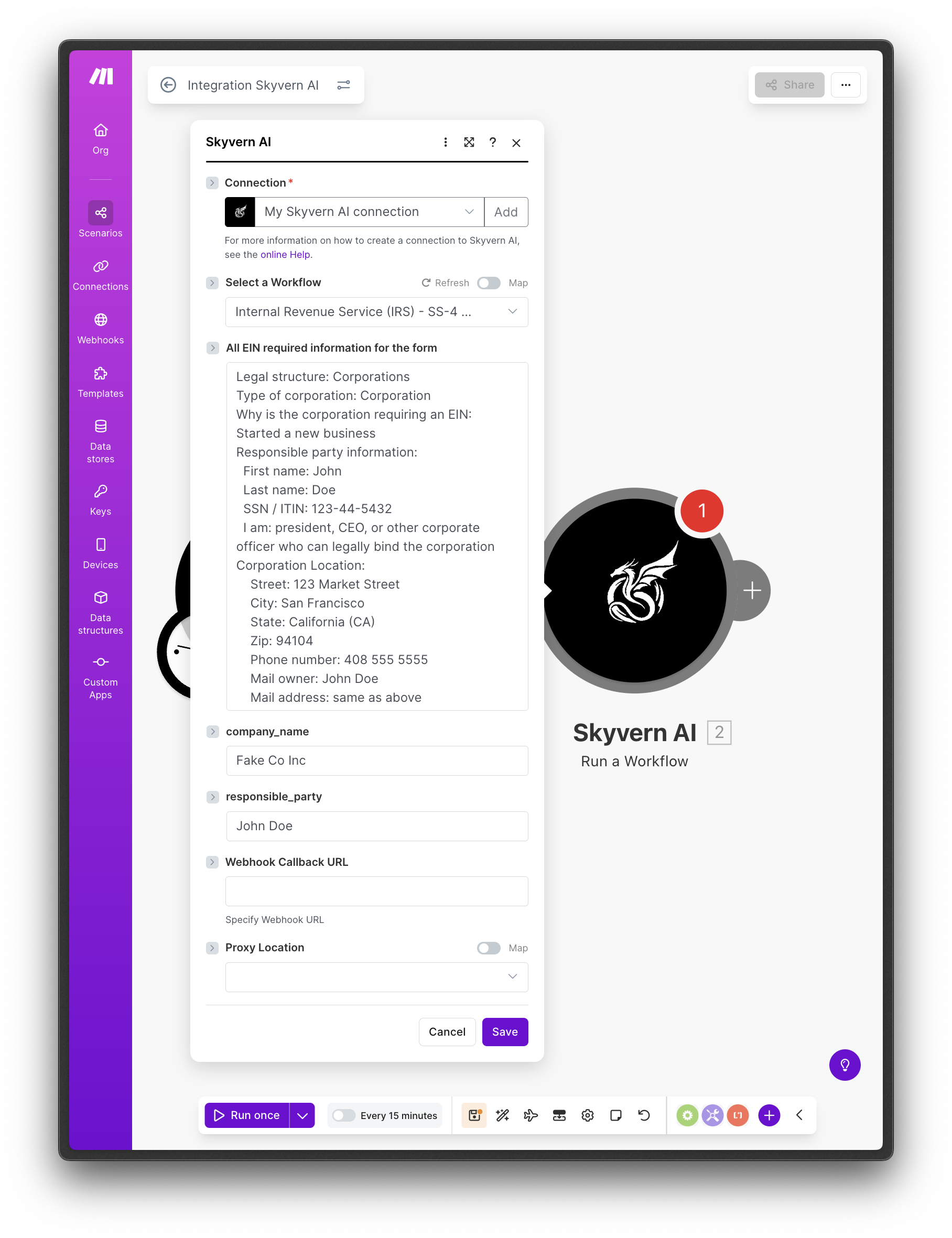
- Run a Workflow — Run a pre-built Skyvern workflow with parameters
- Get a Task / Get a Task V2 — Retrieve results from a previously run task
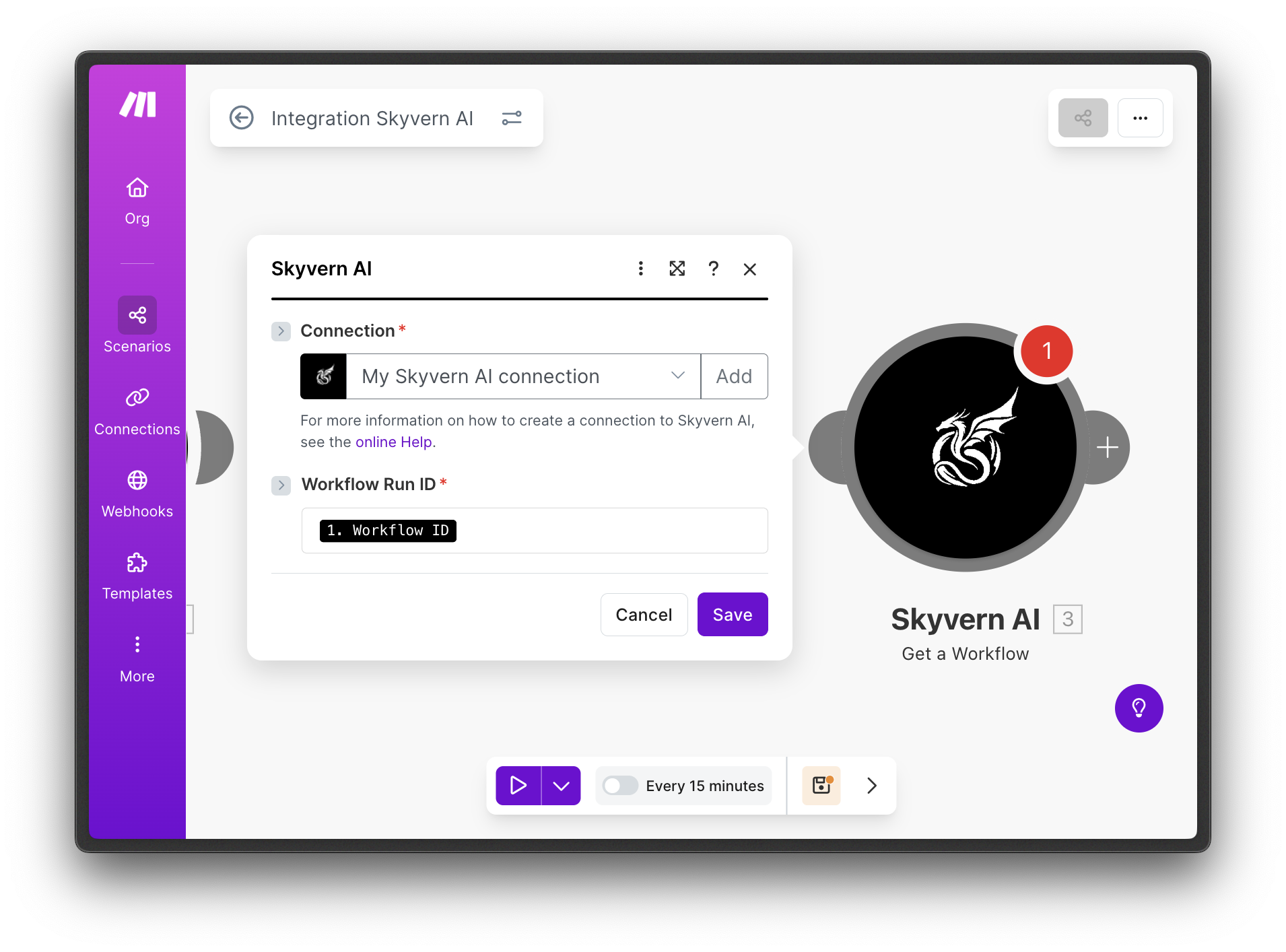
- Get a Workflow — Retrieve results from a previously run workflow
- List Organizations — List all organizations in your account
- Make an API Call — Execute a custom API request with your credentials
Setup
Add the Skyvern module
Create a new scenario or edit an existing one, click +, and search for “Skyvern”.
Connect your account
Click Create a connection and paste your API key from Settings.
Test
Click Run once and monitor progress in your Skyvern dashboard.
Field reference
Run a Task
- URL (required) — The starting page for the automation
- Navigation Goal — What Skyvern should do on the page. Omit if only extracting data.
- Data Extraction Goal — What data to pull from the page
- Navigation Payload — JSON input data for forms. Lets you reuse the same task with different data.
- Extracted Information Schema — JSON schema defining the shape of extracted data
- Webhook Callback URL — URL to notify when the task finishes
- Max Steps — Cap the number of steps to control costs
The navigation goal describes what to do after loading the URL. Don’t include “go to website X” — use the URL field instead.
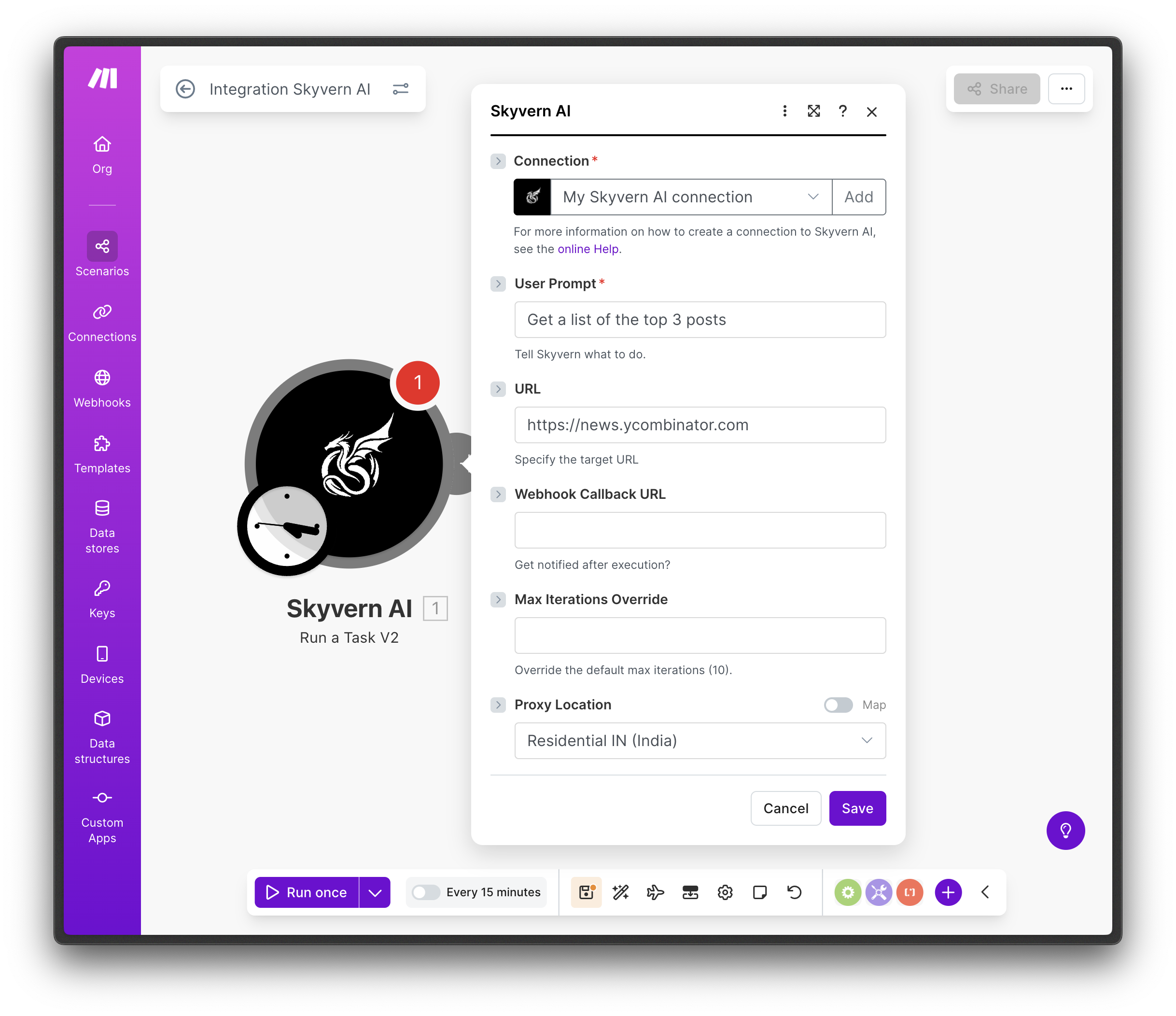
Run a Workflow
First, create your workflow in the Skyvern UI.- Workflow (required) — Select the workflow to run
- Parameters — Fill in any parameters defined in your workflow
Get a Task / Workflow
Retrieve the output of a completed run.- Task ID (required) — Starts with
tsk_ - Workflow Run ID (required) — Starts with
wr_
Next steps
Build Workflows
Create reusable multi-step automations in Skyvern
Use Webhooks
Get notified when tasks complete