

Starting a run
Two ways to start:- From the editor: Click the Run button (play icon) in the header bar. The editor saves your workflow first.
- From the workflows list: Click the play icon on the workflow’s row.
Filling in parameters
The parameters page shows all workflow parameters defined in the editor. Fill in a value for each one, or leave them at their defaults. Parameters without defaults must be filled in before running.Run settings
Below the parameters, you can configure settings for this specific run:| Setting | Description |
|---|---|
| Proxy Location | Route browser traffic through a proxy in a specific country. Default: US Residential. |
| Webhook Callback URL | URL that receives a POST request when the run completes |
| Max Screenshot Scrolls | Override screenshot scroll depth for this run |
| Extra HTTP Headers | Custom headers included in all browser requests (JSON) |
| CDP Address | Connect to your own browser for local development |
Monitoring a run
After clicking Run, you’re taken to the live execution view, the same interface described in Watching Live Execution. For workflows, the left panel also shows a block timeline: a list of all blocks in the workflow. Completed blocks show a checkmark. The currently executing block is highlighted.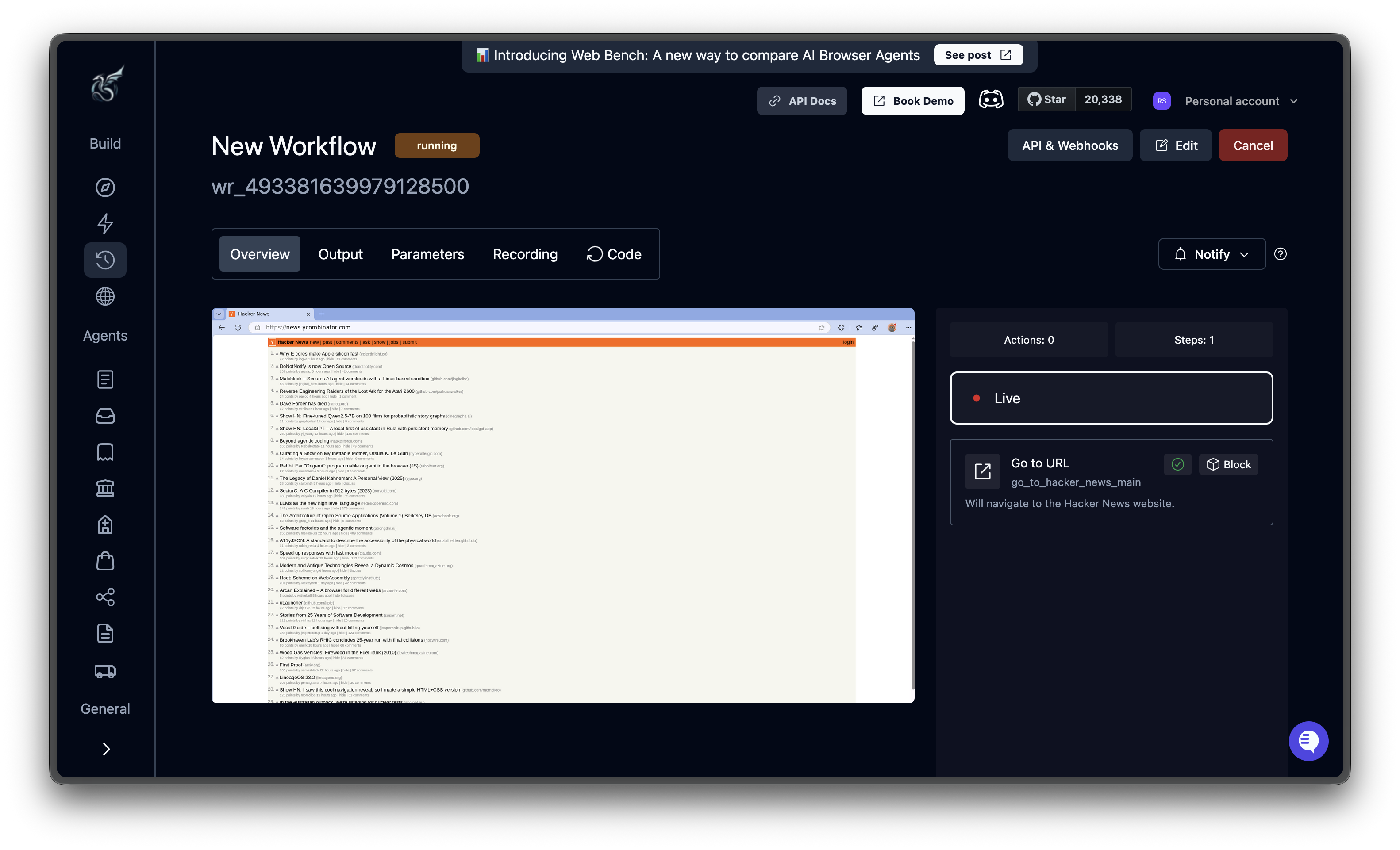
Run statuses
| Status | Description |
|---|---|
created | Run initialized |
queued | Waiting for an available browser |
running | Blocks are executing |
completed | All blocks finished successfully |
failed | A block failed and the workflow stopped |
canceled | You canceled the run |
timed_out | The run exceeded its time limit |
terminated | The run was terminated by the system |
Viewing results
After a run completes, open it from Runs in the sidebar. The run detail page shows:- Block-by-block results: Each block’s output, status, and execution time
- Recording: Full video replay of the browser session
- Parameters: The values you submitted for this run
Canceling a run
Click the Cancel button during execution. A confirmation dialog appears. The run moves tocanceled status and any configured webhook fires.
Run history
Access past runs from two places:- Runs in the left sidebar: shows all runs across all workflows
- History button (clock icon) in the workflow editor: shows runs for this specific workflow
What’s next
Build a Workflow
Create and edit workflows in the visual editor
Block Reference
Configuration fields for every block type