

Authenticator App (TOTP)
The preferred method. Skyvern generates valid 6-digit codes on demand during login flows with no delay and no manual steps.How it works
- The Login block enters the username and password
- The site prompts for a 2FA code
- Skyvern generates a fresh TOTP code from the stored secret key
- The code is entered automatically and login completes
Setting it up
Expand Two-Factor Authentication
Below the password fields, click the Two-Factor Authentication accordion.
Finding your TOTP secret key
Finding your TOTP secret key
The secret key is the base32-encoded string behind the QR code you’d normally scan in an authenticator app. You can find it in a few places:
- Bitwarden: Edit the login → TOTP field → copy the key
- 1Password: Edit the login → One-Time Password → copy the secret
- LastPass: Edit the login → Advanced Settings → copy the TOTP secret
- Site settings: Many sites show a “Can’t scan?” link during 2FA setup that reveals the text key
secret= parameter from the otpauth://totp/...?secret=BASE32KEY URI.Email and Text Message codes
When a site sends 2FA codes via email or SMS, someone (or something) needs to deliver the code to Skyvern before the login can complete.How it works
- The Login block enters the username and password
- The site sends a 2FA code to the configured email or phone number
- You push the code to Skyvern via the 2FA tab or the API
- Skyvern enters the code and completes the login
Setting it up
Expand Two-Factor Authentication
Below the password fields, click the Two-Factor Authentication accordion.
Pushing codes to Skyvern
Once a workflow is running and waiting for a 2FA code, you need to deliver it. There are two ways.Via the UI
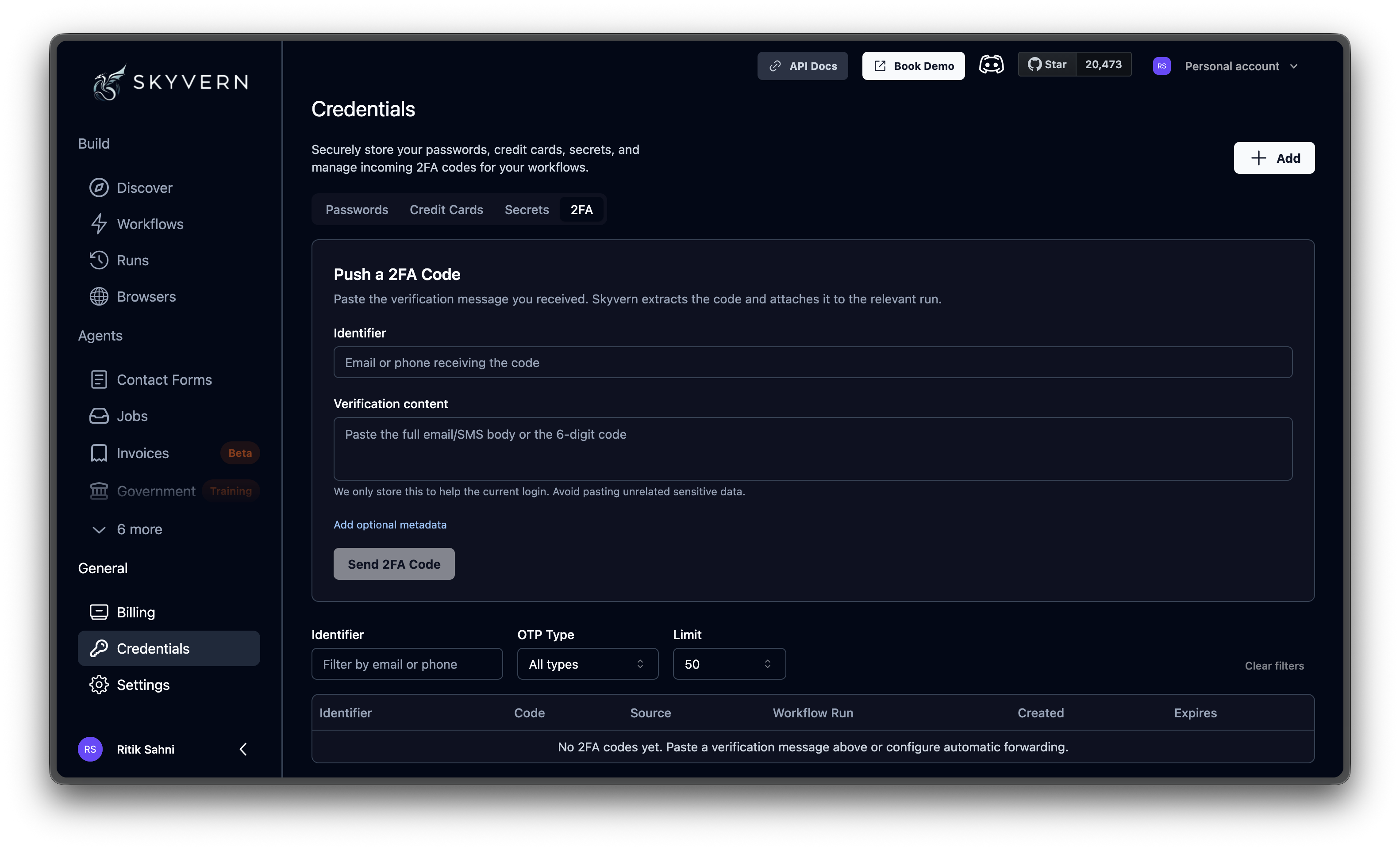
Open the 2FA tab on the Credentials page. The Push a 2FA Code form has two fields:| Field | What to enter |
|---|---|
| Identifier | The email address or phone number that received the code |
| Verification content | The full email/SMS body, or just the code itself. Skyvern extracts the digits automatically. |
Via the API
For production, automate code delivery. Set up a forwarding rule that sends 2FA emails or texts to a script, and the script pushes the code to Skyvern:source field is a free-text label for your own tracking (e.g., "email_forwarder", "twilio_webhook").
To link a code to a specific run, pass workflow_run_id, workflow_id, or task_id. This is the API equivalent of the Add optional metadata option in the UI.
Viewing past codes
The table below the push form shows all 2FA codes your organization has received: identifier, extracted code, source type, associated workflow run, and timestamps. Filter by identifier, OTP type (numeric code vs. magic link), and number of results per page. Use this for auditing and debugging: confirming that a code was received and delivered to the right run.Password Credentials
Create credentials with 2FA methods attached
Credentials Overview
Security model, quick start, and all credential types