

Creating a password credential
Fill in your login details
Enter a Name (a label like “Salesforce Production”), Username or Email, and Password. The password field has an eye icon to toggle visibility.
Configure 2FA (optional)
Expand the Two-Factor Authentication accordion to set up automated 2FA handling. See below for details.
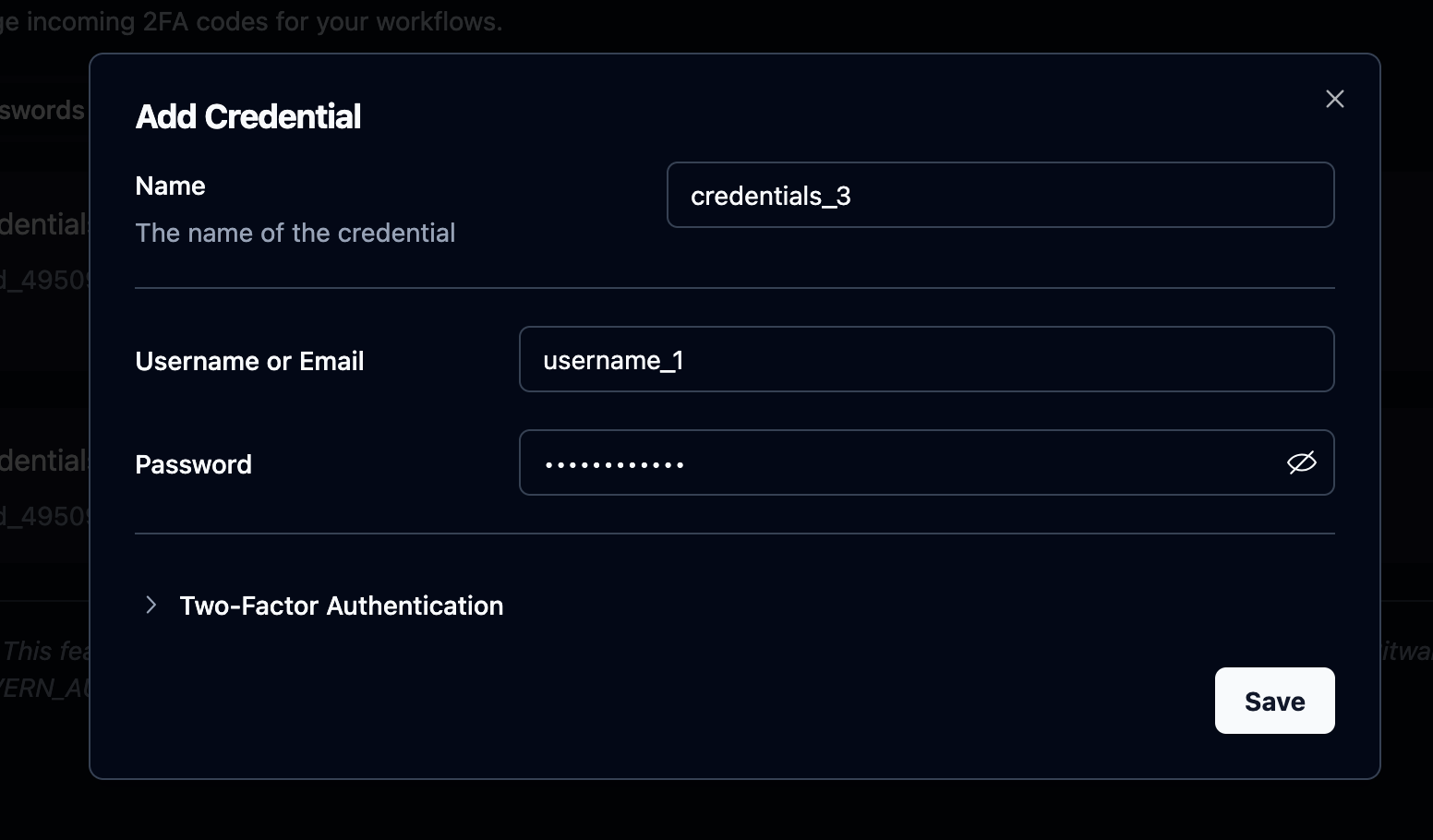
Adding two-factor authentication
If the site requires 2FA, expand the Two-Factor Authentication accordion below the password fields. Three options, depending on how the site delivers codes: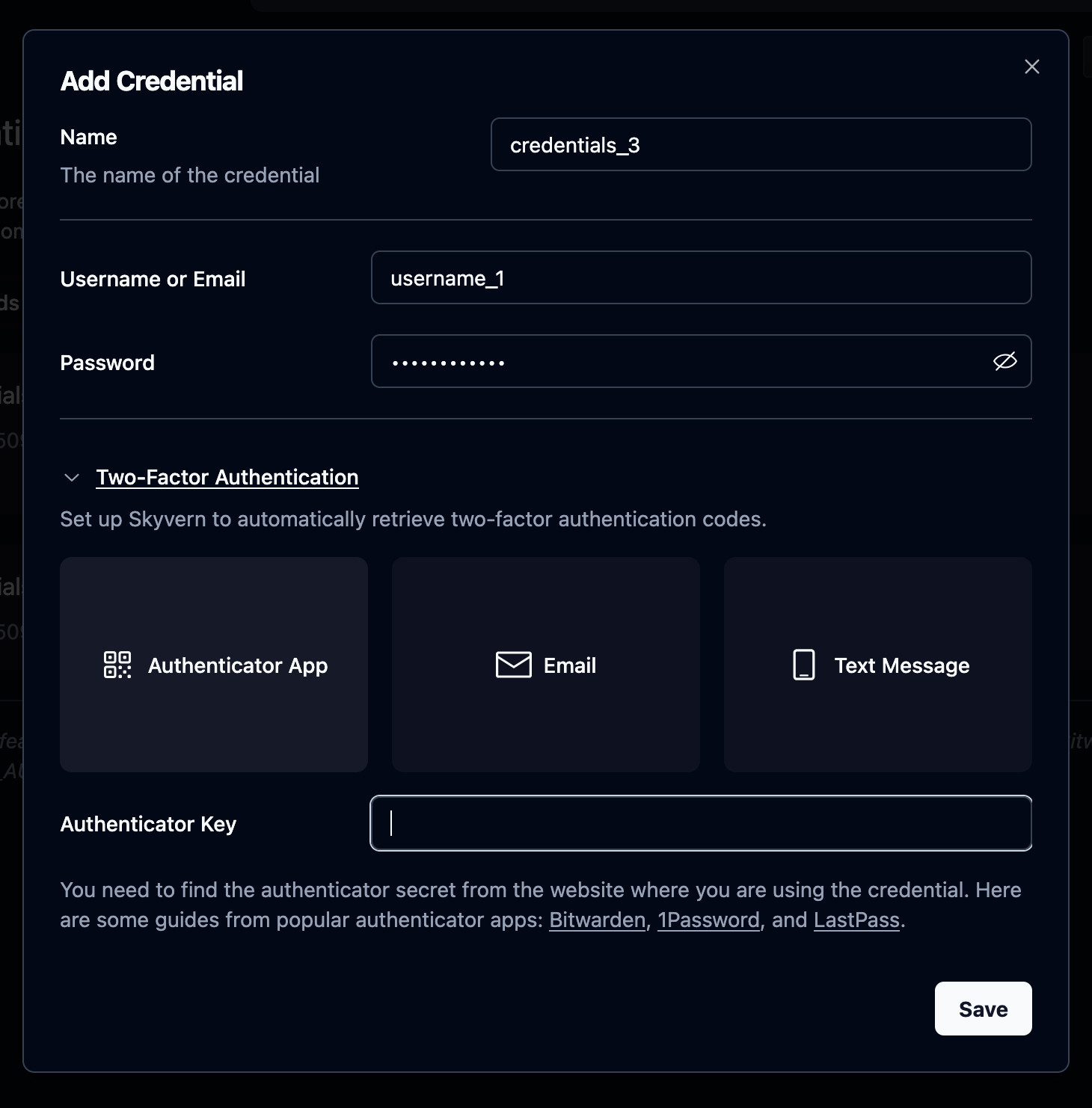
| Method | How it works |
|---|---|
| Authenticator App | Paste the TOTP secret key and Skyvern generates codes locally on demand. Fully automated with no delay. Preferred when the site supports it. |
| Provide the email address that receives codes. Skyvern waits for you to push the code via the 2FA tab or API. Identifier auto-fills from the Username field. | |
| Text Message | Provide the phone number that receives codes. Same push-based flow as Email. |
Finding your TOTP secret key
Finding your TOTP secret key
The secret key is the base32-encoded string behind the QR code you’d scan in an authenticator app. Most password managers let you view it:
- Bitwarden: Edit the login → TOTP field → copy the key
- 1Password: Edit the login → One-Time Password → copy the secret
- LastPass: Edit the login → Advanced Settings → copy the TOTP secret
- Site settings: Many sites show a “Can’t scan?” link during 2FA setup that reveals the text key
secret= parameter from the otpauth://totp/...?secret=BASE32KEY URI.Using credentials in a workflow
In the Login block configuration, select a stored credential from the dropdown. Skyvern fills in the username and password automatically, and handles 2FA if configured.Managing credentials
Stored credentials show the name, credential ID, username (plain text), password (always masked), and 2FA method if configured.To edit a credential, click the pencil icon on its row. For security, saved passwords and secrets are never retrieved, so you must re-enter all sensitive fields when updating.
2FA / TOTP Setup
Push verification codes and manage 2FA for Email and Text methods
Block Reference
Configure Login blocks and other blocks that use credentials