When you run a task from the Discover page, you’re taken to the live execution screen where you can watch the browser in real time.
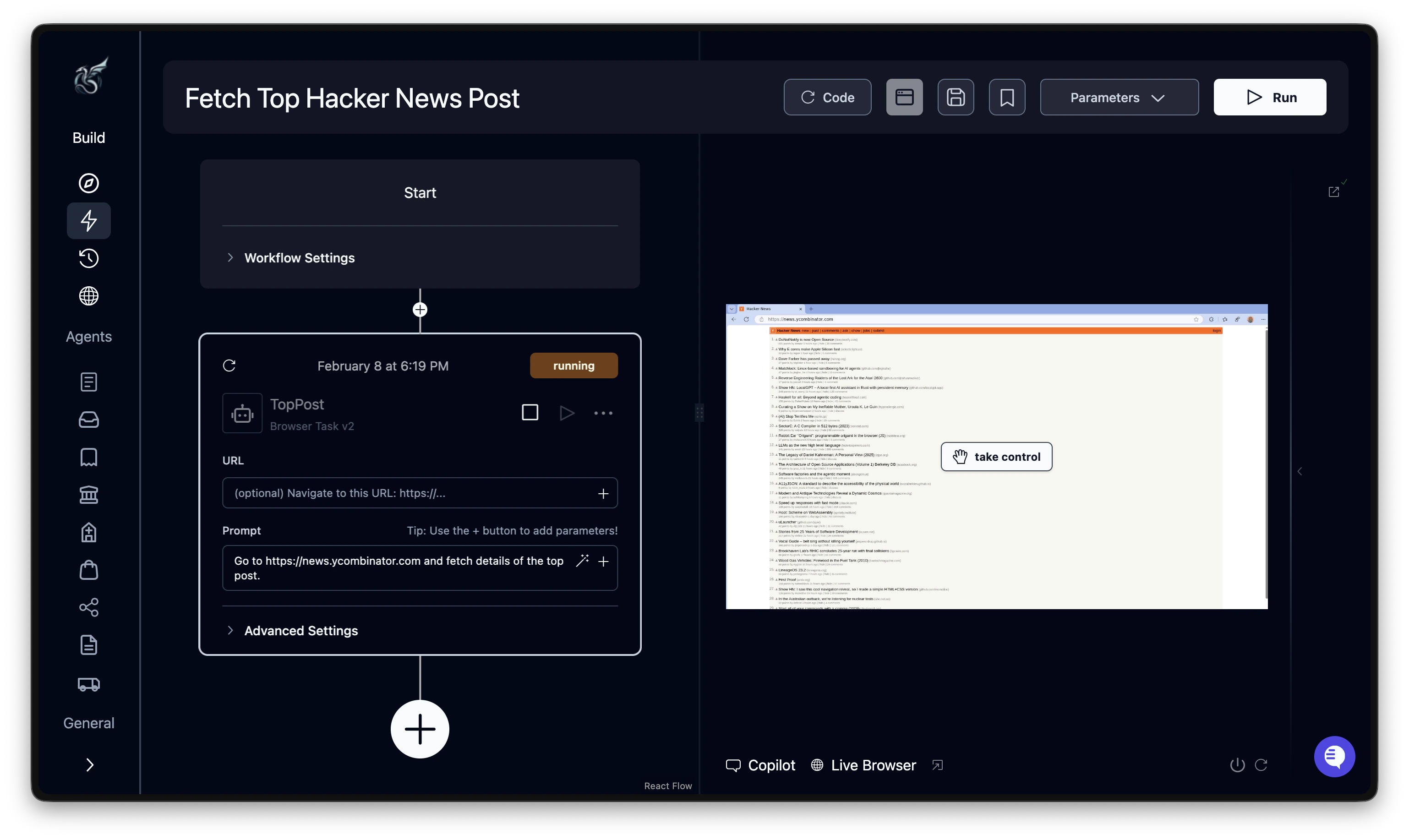
The execution screen
The execution view has three panels:
| Panel | What it shows |
|---|
| Left: Task configuration | The block being executed, its URL, and prompt. A status badge shows the current state. |
| Center: Live browser | Real-time view of the browser. You see pages load, forms fill, and buttons click. |
| Right: Agent logs | Real-time LLM reasoning and action decisions. Shows why the AI made each choice. |
When the live view is available
The live browser stream is active while the task is still in progress:
| Status | Live view |
|---|
created | Waiting to start |
queued | Waiting for a browser |
running | Active: the browser is navigating |
completed | Stream closed. View the recording instead. |
failed | Stream closed. View the recording instead. |
terminated | Stream closed. View the recording instead. |
timed_out | Stream closed. View the recording instead. |
canceled | Stream closed. View the recording instead. |
Taking control of the browser
The Take Control button lets you interact directly with the browser. This is useful when:
- A CAPTCHA appears that the AI can’t solve
- The site has an unusual login flow
- You need to navigate past an unexpected popup
Click Take Control to start interacting. Your mouse and keyboard input goes directly to the browser. Click Stop Controlling to hand control back to the AI.
Taking control pauses the AI agent. Remember to release control so the agent can resume.
Stopping a running task
You can cancel a task at any time while it’s running or queued. Click the Cancel button in the task header. A confirmation dialog appears before the task is stopped. The task transitions to canceled and any configured webhook fires with the canceled status.
Credits for actions already taken are still consumed. Canceling stops future actions but does not refund past ones.
Reviewing results
Once a task finishes, open it from Runs to see the full results. The run detail page has five tabs:
- Overview: The AI’s reasoning timeline alongside browser screenshots. Each Thought, Block, and Action card shows what the agent saw and why it acted.
- Output: The complete JSON output and any downloaded files.
- Parameters: The configuration you submitted: URL, prompt, engine, proxy location, webhook URL, data schema, and other settings.
- Recording: Full video replay of the browser session. Every task is recorded automatically.
- Code: Auto-generated Python code to reproduce this task via the API or SDK (when code generation is enabled).
For a full walkthrough of each tab, see Run Details. 
